
User Guide
A quick tour of where things are and the handy tricks. F1 shows the mouse controls and keyboard shortcuts; S pops up the shortcut toolbar at the mouse.
Building a vault, a PDM system or a script that reads Crusade files? See the File format.
Installing
- Windows 10 / 11: run
Crusade-<version>-windows-x64-setup.exe(signed by Kyle Chandler). It installs for your user only, no administrator password, after you accept the license agreement. On the tasks page you can tick Open these with Crusade for STEP, IGES, STL, 3MF and DXF files; unticked, those keep the program and icon they had. Crusade's own parts, assemblies and drawings always open in Crusade. - Linux: unpack
Crusade-<version>-linux-x86_64.tar.gzand run./install.sh(it shows the license agreement first, and says if your system lacks something Crusade needs). It installs into~/.local/opt/crusade;./install.sh FOLDERinstalls elsewhere. It never deletes a folder you name: a folder that holds other things gets a newCrusadefolder inside it.
First start: the setup
The first time Crusade starts, a short setup walks you through it (each step slides in; Back goes back):
- Free viewer or I have a license. The free viewer opens, measures, renders, prints and exports any file, with no time limit.
- With a license: paste the key from your purchase email and choose how this computer keeps it:
- Normal (recommended): Crusade checks the license every 2 weeks and needs a check at least every 30 days. If the computer is lost, broken or wiped, free its place from your order page (Lemon Squeezy's My Orders) and use the license somewhere else.
- Offline only: Crusade never checks again. Release it from this computer before you reinstall it or give it away; if it's lost or broken, free its place from your order page instead (it's then no longer licensed).
Then Activate. No internet on this computer: No internet here? shows its code for crusadecad.com/activate and Load License File….
- Pick a look: Dark or Light, each with a screenshot of Crusade in that look. The small window beside the choices is a working preview: click its tabs and feature tree. The whole setup changes to the look you pick.
- Default units for new documents (IPS, MMGS, MKS or CGS), each shown with sample values. Inches are preselected in the US, millimeters elsewhere.
- You're set: what you chose, and Open Crusade.
Closing the setup early keeps what you chose so far. Change any of it later in Tools ▸ Options and the License menu.
Home screen
At startup (and from File ▸ Home, Ctrl+F2): start a new Part, Assembly or Drawing, see your Files…, open a file (Import…, Ctrl+O: a Crusade file, STEP, IGES, STL, 3MF or DXF), or click a recent document to open it. What's New, Check for Updates and the Vault are smaller, at the bottom left. Right-click a thumbnail to remove it from the list. Home always opens at startup (that is when it checks for updates). Home is a window of its own: what you open from it comes up in front, with the keyboard, and Home stays open behind (its recent list up to date), so you can open several things; minimize it or close it when you're done (closing it with nothing else open ends Crusade). Asking for Home again brings the same window forward. Each kind of window (part, assembly, drawing, Home, and the viewing windows for meshes and DXF) opens where and how big it was when you last closed one; the first time, parts, assemblies and drawings open filling the screen (maximized). A window last used on a monitor that's no longer connected comes back on the main screen. On Linux desktops that tile windows on their own (such as Zorin OS with auto-tiling), a new Crusade window stays invisible for a fraction of a second while the desktop settles it, then appears already maximized, or where you left it, instead of jumping into half the screen. Once it is on screen, moving or resizing it is up to you.
What's New (bottom left of Home): nothing pops up after an update. Instead this button is a red present with a gold outline until you open it, listing what's new in this version; once opened it looks like the other buttons until the next update. Help ▸ What's New shows the same list. When a newer version of Crusade is out, the same button becomes Update available: Crusade x.y (a red present again); click it to open the download page. Home asks once per launch, in the background; the request carries only the app's name and version (no license key, file names or usage data), to crusadecad.com. Left running, Crusade asks again every 24 hours and, if there is something new, says so in every open window's status bar (and on Home). Check for Updates (under What's New) asks again right away and says how it went (Up to date, Update found, or Couldn't check (no connection)). Every file records the version of Crusade that saved it. A file saved by a newer Crusade than yours doesn't open (nor insert, or go in a Pack and Go): Crusade says which version saved it, with an Update… button that checks for the update and opens the download page. Files saved before 0.0.3 don't say, and open as always. An update that turns out unusable doesn't lock your files: the first time a newer Crusade saves a file, it keeps the file exactly as the older Crusade last saved it, as a checkpoint (Last saved in Crusade 0.0.3). Back in the older Crusade, opening the file also offers Open Older Version…: that checkpoint as a separate copy beside it (Name (Crusade 0.0.3)), which opens and saves as usual. The newer file isn't changed, so your newer work is still there for the newer Crusade.
Ribbon: scroll the mouse wheel over the ribbon's buttons (or its tabs) to step through the tabs; Shift + wheel, or a sideways wheel, scrolls a ribbon too wide for the window.
Search commands (the magnifier at the top, or Alt+C): type part of a command's name ("fil", "mate", "hole") and the matching commands drop down, best first, with where they live (a menu, or the ribbon tab) and their keys; Enter runs the top one (arrow keys pick another, Esc closes it). Commands are also found by what they do ("unfold" finds Flat Pattern). One that can't run right now is listed grayed and only says so. In parts, assemblies and drawings.
Viewing the model
Middle-drag turns the view like SolidWorks: sideways turns it about the screen's vertical, up and down about the screen's horizontal, step by step as the mouse moves (circling the mouse rolls it). Started on the model, it turns about the point under the cursor; started on empty space, about the part's center while the whole part is on screen, and about the middle of the screen (at the part's depth) when you're zoomed in. Middle-click a face, edge or vertex to turn about that point instead (a magenta marker shows it); middle-click empty space to go back. Ctrl+middle-drag pans, the wheel zooms (pushed forward it zooms out, like SolidWorks; Options ▸ General ▸ Reverse direction of mouse wheel zoom off makes forward zoom in), a middle double-click fits the part. Options ▸ General ▸ View rotation speed sets how fast it turns. Hovering a face outlines it in orange with a light orange tint.
Mouse gestures: right-drag in the 3D view or on a drawing sheet and a ring of commands opens where you pressed; drag toward one (it lights up) and let go to run it. Let go near the middle to run nothing. A right click without a drag still opens the menu (or is Enter while something is open), and right-drag on a floating assembly part still spins it. Part, Assembly, Sketch and Drawing each have their own ring, laid out as in other CAD programs. With 8 slots (the default): Part has Extrude up, Hole right, Extruded Cut down and Fillet left; Assembly has the views where they look from (Top up, Right right, Bottom down, Left left, Isometric up-right); Sketch has Smart Dimension up and Exit Sketch up-right; Drawing has Smart Dimension up, Balloon right and Section View down-left. With 12, every ring has OK up-right and Cancel down-right (as Enter and Esc); Part and Assembly have the views there, with Pan and Rotate View (a left-drag then pans or turns the view until Esc); Drawing adds Detail View and Bill of Materials. Tools ▸ Options ▸ Mouse Gestures: on or off, 4, 8 or 12 slots, and click a slot to change its command (any ribbon command); Reset to defaults puts them back. A mouse style where right-drag turns the view has no gestures.
SpaceMouse (3Dconnexion and other 6-axis devices): on Linux install spacenavd and libspnav0 (sudo apt install spacenavd libspnav0) and the device drives the 3D view of the window in front, like 3Dconnexion's object mode: slide the cap to pan, push or pull it to zoom, twist and tilt it to turn the model. Its left button fits the model, the right one opens the view picker. Options ▸ General ▸ SpaceMouse speed sets how fast (the line beside it says whether a device was found). Not yet on Windows.
View cube (top right of parts and assemblies): click a face, an edge or a corner to turn the view there; whatever is under the mouse lights up blue. Options ▸ General ▸ View cube picks Full cube, Small cube, Hidden, or the Name bar instead, and the cube's look: Graphite (dark faces, light names), Frosted glass (see-through) or Soft porcelain (light). The name bar is a small bar in a top corner with the view's name while the camera looks straight along a default plane (Front, Back, Left, Right, Top, Bottom; Front and Back told apart by the side you look from) or is isometric; at any other angle it shows nothing, and during a glide the name lands with the view. Its look (Pill: a rounded bar with a cube mark, or Label: just the name) and its corner (top right or top left) are in the same place. Click it for the view picker.
View picker (Space in the 3D view, or a click on the name bar; like SolidWorks' View Selector): a cube whose faces, edges and corners are each a view (hover one to see its name, click to turn there; Other side turns the cube round for Back, Left and Bottom), the named views with their keys (Front, Back, Left, Right, Top, Bottom, Isometric, Normal To) and Zoom to Fit.
Values are shown with their units in brackets: 0.5 [in], 12 [mm], [in²] (angles as 45°). New features start at sizes that suit the document's units: fractions of an inch (1/2", 1/4", 1/8") in inch documents, whole millimeters in metric ones. In any length box an arrow click or a wheel tick moves 1/8" (inch) or 1 mm (metric), onto whole steps: 0.197" goes up to 1/4". Angles still move 1° a click.
Render (View tab, in parts and assemblies): a realistic image of the model, path traced on the graphics card: soft shadows on a studio floor, reflections, each part looking like what it's made of (metals polished, brushed or bead blasted by their finish; black oxide, zinc, chrome, anodizing in its color, paint and powder coat; plastics glossy or matte; acrylic and polycarbonate clear; a part with no material in its blue-green plastic). The image sharpens pass by pass while the view holds still (the status bar counts the passes); turning or zooming starts it again. Planes, edges, the view cube, the name bar and the axis triad stay out of the picture. Render again (or opening a sketch) goes back to the normal view. A graphics driver that can't ray trace keeps the normal view.
Why it starts grainy: path tracing averages random light paths, one per pixel per pass, so the first passes are speckled and the grain fades as passes add up (4× the passes halves it). The live view stops after 1,000 passes; the Render panel's Preview ▸ Passes (or Options ▸ General ▸ Render ▸ Live render passes) changes that (raising it carries on from where it got to). Hovering over the feature tree while rendering leaves the picture alone.
Render panel (the right-hand strip's Render button, or View ▸ Render Options; parts and assemblies): Start Rendering / Stop Rendering (the same as View ▸ Render), how many passes it has done, the options below (remembered) and Save Render Image…:
- Background: Studio (soft gray with softboxes, the default), Outdoor (a pale sky with the sun high in front, ground below the horizon), White (an even white sweep) or Dark (softboxes on black, dramatic highlights on metal). The floor under the model changes with it.
- Perspective (like a real camera; the CAD view is flat). Framing stays as it was; Render off goes back to the flat view.
- Depth of field: blur in front of and behind the focus point (it turns on Perspective, which it needs). Pick Focus Point, then click the spot on the model to keep sharp (Esc keeps the old one); without one it's the middle of the model. Blur sets how strong.
- Preview ▸ Passes: how far the live view refines (250 to 50,000).
- Save Render Image… asks each time for the image's size (Window size, 2× window or 4K, 3840 px wide; it keeps the view's shape) and quality (Draft 500, Good 2,000 or Best 10,000 passes; Best can be changed in Options ▸ General ▸ Render), remembering your last choice, then renders the picture again off screen at that size until it has every pass (a progress bar; Cancel saves nothing), so it comes out refined at any size, not as one grainy pass. With Render off it saves the view as it is.
Rebuild and the status light
Rebuild (Ctrl+B, top right of the ribbon) regenerates everything from scratch. The light next to it is green when the model is up to date with no errors, yellow while it rebuilds, and red when a feature or mate failed — hover it to read the errors, click it to review them.
Big parts open at once. Saving a part keeps its finished shape in the file, so opening it shows the part straight away, even the next day, instead of rebuilding every feature. Assemblies and Insert Component use the stored shapes of their parts, and drawing views use them too. A big part with no stored shape yet (a file from an older Crusade, say) is built in the background when you insert it: the bottom bar says Building Bracket.cprt, you keep working, and the part drops in when it's ready. A big STEP file inserted is imported the same way (Importing Motor.step). With a stored shape, Crusade rebuilds the part in the background to make sure the stored shape is still right (the light by Rebuild says Rebuilding… meanwhile), and the bottom bar says up front whether anything can change. Green when nothing the part is made from has changed: Up to date: unchanged since saved · double-checking 45% (in an assembly or drawing, Parts up to date: none of their files changed · checking 3/12), then Checked: no change for a few seconds. Amber, naming the file, when a file it uses changed: Casting.cprt changed since Machined.cprt was saved: rebuilding…; the rebuilt shape is shown, and once it's done the bar says what was updated (Updated: Casting.cprt changed). A part saved by another version of Crusade (after an update) opens as it was saved, amber Saved with another version of Crusade: shown as saved · rebuilding 45%, and you can measure and select it while this version rebuilds it in the background; if the rebuild comes out different, it takes its place and Measure keeps what you picked. Assemblies and drawings do the same (2 parts saved with another version of Crusade: shown as saved · rebuilding 1/2). If the background rebuild can't finish (an operation took too long there), it says so in gray and the part stays as it was saved. You can turn, zoom, select and measure meanwhile. Opening and viewing are instant; the first edit of a part still waits for its rebuild, as before. Crusade also keeps a copy of the parts it built recently on this computer (up to 1 GB), so a part you opened once opens at once the next time, even if you didn't save it or an older Crusade saved it. Nothing is added to your files, and nothing is sent anywhere. A stored shape is used on any computer with the same version of Crusade, Windows or Linux. Options ▸ General ▸ Performance ▸ Open big parts from their stored shapes turns it all off.
Parts
Start a sketch: pick a plane (Front / Top / Right in Default geometry, or a plane in the view) or a flat face, then Sketch (Shift+S). Double-clicking a plane in the tree, or right-clicking it ▸ Sketch, starts one too.
The default planes show in a new or empty part. Starting a sketch hides them, and they stay hidden afterward until you turn them back on (Show Planes, View tab); a part that already has sketches or features opens with them hidden. Sketch with nothing selected shows them just while you pick one. While a sketch is open, the plane it's on stays shown as just its outline (the others hide; Show Planes shows them all as usual), also when you edit the sketch later; a sketch on a face shows no plane. Clicks go through it to the sketch.
To have the planes change only when you change them, turn off Show and hide planes automatically (Options ▸ General ▸ View). Then sketches, features, the flat pattern and opening a part or assembly leave them as they are, and a new window starts with them the way you last left them. Sketch with nothing selected doesn't show hidden planes: it opens Default geometry in the tree so you can click a plane there (or a flat face), or press P to show them.
One plane at a time: point at Front, Top, Right or Origin in Default geometry, or a plane you made, and click the eye at the end of its row (or right-click ▸ Hide / Show, also for several selected). A hidden one is grayed in the tree, its eye crossed out, and stays hidden when Show Planes (P) turns the planes on; P is the switch for all the others. The part remembers it, and Undo takes it back. A hidden plane can still be clicked in the tree, for a sketch or a command. The origin shows with the planes, as the same red mark as a sketch's origin. Renders (render mode, saved render images and thumbnails) never show planes or the origin; leaving render mode puts back what you had.
A sketch on a face lines up with the part: its origin is the part's origin projected onto the face, and a face that looks along Front / Back, Top / Bottom or Right / Left gets that view's axes, so sketch coordinates match the part's.
While sketching: the cursor carries the active tool's icon. Switching tools in the middle of a chain (Line, Centerline, Tangent Arc, 3 Point Arc, Spline; e.g. pick Tangent Arc on the Arc drop-down while drawing lines) goes on from the last point, and the preview turns into the new entity. A while drawing lines starts a tangent arc from the last line's end; once the arc is placed you're back on the line, going on from the arc's end. Pressed when no line is under way, A is the 3 Point Arc. T is the Tangent relation, as its button (select a line and an arc, or a curve's end, then press T). Construction (Q) with nothing selected makes the next entity you place construction geometry (the button lights and the cursor shows a dashed line), then switches off by itself; press it again first to cancel. A rectangle, slot or polygon counts as one entity; in a line chain it's the first segment. With entities selected, Construction only switches those between construction and normal (nothing new is affected).
Box select in sketches: with the select tool, press the left button on empty space and drag. Dragged to the right the box is solid (window): it selects what lies wholly inside. Dragged to the left it is dashed (crossing): it also selects what it touches. Hold Ctrl to add to the selection. Lines, arcs and circles come without their end points, so relations such as Parallel or Equal still apply; a corner boxed on its own is selected as a point. Pressing on an entity still drags it.
Copy / paste in sketches: Ctrl+C copies the selected entities, Ctrl+V pastes them at the cursor (into this sketch or another one); corners stay joined, no relations to the originals.
Sketch Pattern (Linear / Circular, in the sketch panel, a switch at its top): a box for each thing to pick. Entities to Pattern lists what's copied: click sketch geometry to add it or take it out (what was selected when the tool started is already in it). For a linear pattern click the Direction 1 box, then a line or a straight model edge (empty: the sketch's X axis; Reverse turns it round), with Spacing and Instances (Centered: copies both ways, Instances then counting each side, so 5 makes 9 with the original in the middle); tick Direction 2 for rows and columns (its own box, empty: 90° to direction 1, with its own Centered). For a circular pattern click the Center box, then a point, a circle or arc (its center) or a round model edge (empty: the sketch origin; a construction circle or a lone point selected with the geometry is taken as the center, so a bolt circle and a hole make a ring of holes), with Instances and the Total angle (Equal spacing off: the angle between neighbors). The copies show in orange as you go, each with a dot: click a dot to leave that copy out (again to bring it back). Apply (or Enter) makes them; Cancel or Esc leaves the sketch as it was. The pattern stays live: its copies follow the original as it moves or changes size (the copies' points are fixed, the pattern drives them), and right-click a copy or the original ▸ Edit Pattern brings its values back to change them. Instances, Spacing and the angle take a variable or an equation (type holes or =length / 20); right-click ▸ Configure Value ▸ Pattern1 Count makes one a column of the Configuration Manager. Delete a copy to leave it out. Sketch patterns in files from before stay plain copies.
Sketch Fillet and Chamfer (one panel, a Fillet / Chamfer switch at its top): click the corners to round or cut (points where two lines meet; click one again to take it out). They're listed under Corners, and the view previews them at the size in the panel, following it as you type. Apply (or Enter in the view) makes them all, in one undo step; Clear forgets the picks. A fillet keeps the corner as a point where the lines would meet (its relations and dimensions keep holding the outline) and is tangent to both lines; the first fillet gets a radius dimension and the others an Equal relation to it, so one dimension changes them all. A chamfer is Equal distance, Two distances (Distance 1 and 2) or Distance · angle (the angle from the first line; Flip puts the first distance on the other line); it keeps the corner point too and gets its dimensions, so a fully defined sketch stays fully defined.
Repeated relations are skipped: when what you draw already holds a relation that was there before, the repeat goes instead of over-defining the sketch. For example, a centerpoint arc around a circle's center that starts on the circle and ends on a point already on it: the arc itself keeps that point on the circle, so the relation its start point got is dropped. The older relations are kept; dimensions are never dropped, and a sketch that was over-defined before is left alone.
Inference lines: while drawing, the cursor lines up with other points (and the origin) straight across or straight up and down, shown by a dotted line; it only places the point there, no relation is added.
Drag a point that's already there (a line's end, an arc's end, a point) and it snaps as a new one does: dropped on a point it's Coincident with it, on a line's middle Midpoint, on a line or circle On it, with the same markers and dotted lines while you drag. Hold Ctrl to drag without snapping.
Sketch tools (Sketch tab): line, rectangles (corner, center, and 3 Point: two corners of one side at any angle, then the width), circle, perimeter circle (Circle drop-down: three points on it; clicks on geometry keep it through them), ellipse (in the Circle drop-down: click the center, one end of the major axis, then a point it passes through; Smart Dimension gives the major or minor axis depending on where you place it), arcs, spline, text, slot, polygon, point, centerline, trim (click a piece, or hold the button and drag across several: Power Trim; the cut ends stay tied to the curves they meet, nothing that's left moves, and a relation the cut would make repeat another is dropped, so trimming never turns the sketch red), extend (in the Trim drop-down: click near the end of a line or arc and it grows to the next curve it meets), split entities (Trim drop-down: click a line or arc to cut it in two there; a line's pieces stay in line, an arc's on one circle; refused while a length dimension, Equal or Midpoint relation is on it, since half of it would change meaning), sketch fillet and sketch chamfer (buttons of their own on the Sketch tab, next to Trim; see Sketch Fillet and Chamfer below), offset entities, mirror, Linear Sketch Pattern and Circular Sketch Pattern (their own drop-down; see Sketch Pattern below), convert entities, Move/Copy, Rotate and Scale Entities (their own drop-down). Relations sit in the Relations group; select several entities and a relation applies to all of them at once (Equal, Parallel, Collinear, Concentric, Coincident: each with the first one picked; Horizontal, Vertical, Fix: each one; several points and one line or circle: every point onto it), in one undo step; D is Smart Dimension. To remove a relation, select its entity, pick the relation under Existing Relations in the sketch panel and press Delete (or right-click ▸ Delete): only the relation goes. With the focus in the view, Delete removes the selected entities.
Sketch Picture (Sketch tab, in an open sketch): put a photo, scan or drawing on the sketch's plane to trace over. It comes in 100 mm wide at the sketch origin, faded back so the lines stand out. To size it, put two sketch points on features of the picture whose distance you know, select both, Scale Picture, and type that distance: the picture scales about the first point. Picture Properties: its position (lower-left corner), width, rotation and opacity, or Remove. The picture is saved inside the part and shows while its sketch is open.
Import DXF (Sketch tab, Sketch Picture drop-down, in an open sketch): a DXF drawing's lines, circles, arcs, polylines (with their bulged arcs), ellipses and splines come into the sketch, on its plane. Pick the drawing's unit (read from the file when it says), which layers come in, and whether its lower-left corner goes to the sketch origin. End points that meet are joined, so a closed outline extrudes straight away. Blocks, text and hatches are left out (it says how many). Any ASCII DXF version; binary DXF isn't read.
Gear Profile (Sketch tab, or Tools ▸ Sketch Entities, in an open sketch) puts a gear's outline into the sketch as ordinary sketch geometry, to cut by laser, waterjet or router or to extrude yourself. Its panel: picture buttons for Gear / Internal / Rack, a Center box (where the gear is, or "Click in the sketch"; click again to move it), Size (module or diametral pitch, teeth, the bore or ring) with the pitch, outside and root Ø shown as you type, For cutting (the tool offset), and two sections folded to a one-line summary: Tooth form (pressure angle, backlash, profile shift, root fillet) and Options (center X / Y, angle, pitch circle, Lock). Choose Gear, Internal (a ring: the tooth outline inside an outer circle) or Rack. Click the gear's center (it snaps to points, the origin and model edges); a rack starts where you click, or runs along a line you click. Set the size by module or diametral pitch (inch documents start in DP), the teeth (a rack: teeth or a length), pressure angle, backlash, profile shift and root fillet; a gear can have a Bore Ø, a ring an outside Ø. The preview follows the values; OK adds it, Esc cancels. Tool offset is half the width of the cut (the laser kerf, the waterjet stream, the router bit's radius): the outline moves out by it and holes shrink by it, so the part comes out at size; leave it at 0 for a profile you'll extrude. The flanks are the same involutes as the Gear feature's. Pitch circle as construction adds the pitch circle (a rack: its pitch line). Lock (on by default) fixes the geometry and dimensions its circles so the sketch is Fully Defined; the Center and Angle fields place it. To change it later, select any part of it and choose Edit Gear Profile (in the panel or by right-clicking): it's rebuilt in place. Deleting any part of it deletes all of it.
Export Sketch as DXF… (right-click a sketch in the tree, right-click in an open sketch, or Tools ▸ Sketch Entities) saves the sketch's geometry, without construction lines, in the sketch's own coordinates and the document's unit. Lines, arcs and circles are exact; splines become polylines within 0.01 mm.
- Fully Define Sketch (Smart Dimension drop-down, or right-click): adds relations and dimensions at the geometry's current values, so nothing moves, until the sketch is fully defined: Horizontal / Vertical on lines already lying that way, a diameter on circles, a radius on arcs, the minor axis on ellipses, then dimensions across and up from the origin to each point that can still move (stacked below and to the left of the sketch). A point on the origin gets Coincident instead, and one straight above or beside a point already placed gets Vertical / Horizontal to it rather than a second dimension of the same size. Anything that would conflict is skipped; an over-defined sketch is left alone for you to fix first. One undo takes it all back.
- Move / Rotate / Scale Entities: select entities, pick the tool; one dialog has a tab for each (ΔX / ΔY, an angle, a factor) with a live preview. Rotate and Scale turn or grow about a lone point you selected too, else the sketch origin. Copy keeps the originals and adds unrelated copies. Moving in place keeps the relations and dimensions inside the selection and deletes the ones tying it to the rest of the sketch (and Fix); tick Keep relations to keep them (the geometry then stays where they hold it). Rotating by 90° swaps Horizontal and Vertical; other angles drop them. Scaling scales the lengths and radii, dimensions included.
- Circle and arc size: click a circle (or an arc) in a sketch and its diameter and radius show at the bottom right of the window (
Circle: Ø 0.500 [in] R 0.250 [in]). - Blue = under-defined, white/black = fully defined, red = over-defined. A yellow point is where an arc meets a line or another arc at an angle instead of tangent — defined or not — so a joint that only looks smooth stands out. Drawing a line from an arc's end close to the way the arc runs there snaps it onto the tangent ("T" by the cursor) and adds the Tangent relation, so the joint never goes yellow. Right-click a line or arc: Select Yellow Points selects them all; with some selected, Make Tangent adds the Tangent relation at each (a line running straight at the arc's center is swung to the nearer tangent direction first).
- To a circle's nearest or farthest point (the arc condition): with Smart Dimension, hold Shift when you click a circle or arc, on the side you want to measure to: clicked on the side toward the other entity the dimension goes to its nearest point (min), on the far side to its farthest (max). Without Shift it goes to the center, as before. Works for distances to a line, a point or another circle, and horizontal / vertical ones.
- Radius of an arc placed past the arc's ends: an extension arc runs from the arc's nearer end out to where the arrow touches, so the arrow always lands on the arc or its extension (like an angle's extension lines).
- Angle between two lines: where you put the label picks the angle (the acute or the obtuse one, in that corner).
- Diameter dimension for revolves: Smart Dimension a line or point and a centerline, then place the dimension on the far side of the centerline: it shows Ø and twice the distance (place it on the near side for the plain distance).
- A distance between two parallel lines, or from a point to a line, is drawn from the side where you place it: the extension lines come off the nearest ends with a small gap and never run back along the lines. Placed beside the lines, the arrows touch the lines themselves.
- Double-click a dimension to change it. Type numbers in any unit (
25mm,1/4",2*1.5). Tab previews what the value would do; Enter keeps it, Esc puts it back. A value the relations can't meet stays, turns red, and hovering it explains what it fights with (change or delete one of them). When a relation or dimension can't be added because it would over-define or conflict with the sketch, the message at the top of the Sketch panel flashes red for about two seconds (without fading when Smooth animations are off). - Offset Entities: each offset curve gets an Offset relation (⇉) to its original, and one dimension holds the distance (a Distance dimension when lines are offset, an Offset dimension for circles or arcs alone). Change that dimension, or the originals, and the whole offset (lines, arcs, circles and rounded corners) follows. Deleting the dimension leaves the offset free to move as one piece. A curve with an Offset relation can't be split; delete the relation first.
- The part's edges and corners, and earlier sketches: every model edge and corner is projected onto the sketch plane, seen straight on, even when the sketch is square to it. A box edge running toward you is a point, a face seen edge-on is a line, a hole seen from the side shows its two outline lines, its center and (end-on) a line across it; cylinder seams are left out. You can:
- snap to them while drawing: a line started on a model corner is coincident with it, one ended on an edge stays on it, midpoints too;
- select them with the select tool and add relations (parallel, collinear, coincident, tangent, equal …) with your own sketch geometry;
- dimension to them with Smart Dimension.
Click the edge where the model draws it, in the Normal To view or in a turned view (the projection lights up on the sketch plane). Your own sketch geometry wins when both are under the cursor. Used edges are copied in as fixed construction lines (purple) that follow the model when it changes; one you only clicked goes away again when you click elsewhere or press Esc. Convert Entities makes them real sketch geometry. (Options ▸ General ▸ Snap to model edges and earlier sketches: off stops the snapping while drawing; selecting and dimensioning still work.)
- Text: click where it starts, then type in the panel (height, angle, font, bold). Extrude or cut it to emboss / engrave.
Features (Features tab): Extrude (Blind, Through All, Mid Plane, Up To Next, Up To Surface, Up To Vertex, Up To Body, optional Direction 2: one face per side, no seam at the sketch plane), Revolve, Sweep, Loft, cuts (Extruded, Revolved, Swept and Lofted Cut; the last three share a drop-down), Fillet (constant, or variable size: Type ▸ Variable size, a start and an end radius changing evenly along each edge, Swap ends to turn it round), Chamfer, Shell, Draft, Rib, Combine, Move/Copy Body (Combine drop-down: turn about X, Y or Z through the origin, then move by X, Y, Z; Copy keeps the original and adds that many copies, each a step further), Delete/Keep Body (in the Combine drop-down: click a face of each body to delete, or to keep only those), Split (Combine drop-down, or Insert ▸ Bodies: cut the part into separate bodies with a default plane, a plane you made, a flat face you click, or a sketch's lines, each line going straight through the part; Keep both sides as bodies, or only one side), Insert Part… (another part brought in as it is now, and it follows that file: all its bodies or one, a configuration, mirrored about a default plane, moved; as a new body, joined to this part, or cut out of it, a mold cavity), Save Bodies… (each body of a saved multi-body part into a part of its own, <name>-Body1 …, each an Insert Part of this one, so they follow it: print a big part in pieces, a two-part mold; Pack and Go and Where Used know about inserted parts), Scale (the whole part, e.g. 1.02 for print shrinkage; uniform or per axis, about the origin or the centroid; scaled per axis, flat faces stay flat — sketch and mate on them as before — and a hole stretched along its axis stays round), Hole Wizard, Thread (in the Hole Wizard drop-down), Linear / Circular Pattern, Mirror, reference Plane.
Parts made from another part (a casting and the machined part made from it): right-click a part in Files, or File ▸ New Part from This… (also in the Bodies list's right-click menu), and name the new part (Casting Machined for a part named Casting): it's saved beside the first one, starts as an Insert Part of it, with its units and material, and opens; cut material away from it. When the first part (the casting) is saved, the machined part follows: an open one rebuilds when its window comes to the front (or at once, if it's the window in use) and the status bar says Casting.cprt changed; rebuilt; a drawing of it follows too. Sketches and cuts on the casting's faces move with them (a taller casting, a boss added). A change that takes away a face something was made on shows that feature, and each one made from it, in amber in the tree with Missing reference … in its tooltip (the status bar says how many need a look) — never built where the face used to be. In the Insert Part feature, untick Follow changes to that file to break the link: the part keeps the shape it has then (kept in its own file, even if the casting is moved or deleted); tick it again to follow the file again. (0.0.2 and earlier open a part with a broken link following the file.)
Gear (Features ▸ Gear, Insert ▸ Gear) makes an involute gear from its numbers. Pick the type: Spur, Helical, Internal (a ring gear with its teeth inside), Rack, or Face (a crown gear meshing with a spur pinion at 90°). Size it by Metric · Module or Inch · Diametral pitch (inch parts start in diametral pitch). Give the teeth, pressure angle (20° is standard) and face width; the panel shows the pitch, outside and root diameters and the circular pitch. A helical gear's module is the normal module, the hobbing standard (pitch Ø = m·z / cos β); a mating gear on a parallel shaft has the same helix angle and the opposite hand. Under Fit, Backlash thins each gear by half of it, so two gears made with the same value have it all; Profile shift x moves the teeth outward, which stops small pinions being undercut (the panel says when they are, and the shift that cures it). Center adds a bore (plain, keyway sized to DIN 6885 or ANSI B17.1, D-flat or hex) and a hub. Click a plane or a flat face to put the gear there, and a sketch point, vertex or round edge to center it; Angle turns the teeth. Clear Merge with the part to make the gear a body of its own. Teeth are generated by the standard rack, so the flanks are true involutes and undercut is modeled; face gear teeth are a close approximation that meshes with their pinion. Gears are named for what they are ("Spur Gear 24T M2"), and the tree's tooltip lists their sizes.
Rib grows each line of its sketch, in the sketch plane, until the part closes it off. Its thickness runs across the sketch plane and is set like an extrude: Direction 1 Mid Plane centers it on the plane; Blind puts the depth on one side (Reverse direction for the other side), and ticking Direction 2 adds a second blind depth on the opposite side. Flip material side grows it from the line the other way. A rib whose thickness would run past the side of the part says so instead of building. While you edit any feature, the view shows the part before it plus the new preview.
Direct editing (Insert ▸ Direct Edit, or the Delete Face drop-down next to Shell; any body, made for imported STEP parts that have no features to edit):
- Delete Face: click the faces of what should go (every face of a hole, a whole fillet, a boss, a logo); the faces around it grow to close the gap. Removing a face nothing can close (a box's side) says so.
- Offset Face: click faces and give a distance; each face moves along its own normal and the faces next to it stretch or shorten to follow. Positive adds material (a face rises, a hole gets smaller), negative takes it away; Reverse direction flips it. Several bodies: only the ones with picked faces change. A flat face with square walls round it (a block's side, a pocket floor) moves exactly and at once; a face with rounds next to it can be beyond the geometry kernel: after 30 s it says so (move the rounds with it, or try a smaller distance).
- Move Face: pick all the faces of a hole, pocket or boss (with its fillets) and say how far it goes along X, Y and Z, and whether it turns about X, Y or Z (through its middle): it's taken off the part (as Delete Face would) and put back there. Move a hole on an imported STEP part without redrawing it.
All three are features in the tree like any other (edit, suppress, roll back, reorder).
Wrap (Insert ▸ Wrap, or the Plane drop-down): sketch closed outlines or text on a plane along a cylinder's axis (one touching it, or parallel to it: a plane offset from a default plane by the radius is handy), select the sketch and click the round face. Emboss raises them off the face by Depth, Deboss sinks them in, Scribe only marks them (the face is split along them, for a color or a second material). They go round the face the way the sketch reads: arc length on the cylinder = distance on the sketch. Logos and lettering on round parts, grip bands, labels to print.
Dome (Insert ▸ Dome, or the Plane drop-down): click a flat face (without holes) and give the height at its middle; the face swells into a smooth cap: a true spherical cap on a round face, a smooth surface through the edges on any other outline. Negative (or Reverse direction) sinks it in: a dish.
Helix (Insert ▸ Curve ▸ Helix, or the Plane drop-down): select a sketch with a circle; the helix goes round the circle (its center and radius), rising along the sketch's normal: pitch, revolutions (the height is shown), start angle, clockwise (left hand), reverse direction, and a taper angle (a conical spring). It shows as a curve in the view. Sweep takes it as the path: sketch the wire's cross-section (a small circle) on a plane through the helix's start, select it and the helix, and Sweep makes a spring or coil (the profile stays square to the helix's axis all the way round). A helix used by a sweep is hidden, like a used sketch.
Split Line (Insert ▸ Curve ▸ Split Line, or the Plane drop-down): sketch the dividing curves on a plane facing the faces, select the sketch, and Split Line projects it straight through the part along the sketch's normal, cutting the faces it crosses into separate faces. Click faces in the command to split only those (none picked: every face it crosses). The solid itself is unchanged; the new faces can take their own mate, fillet, appearance or SimpleSim load.
- Double-click a face or edge of the part to edit the feature that made it.
- Click a face or edge and the feature that made it is tinted in the feature tree.
- Rest the mouse on a feature or sketch in the feature tree for a second and what it uses directly gets a thin solid blue outline: its sketch, the plane it's on (or the Default geometry folder when that's closed), and the features that made the faces and edges it picked. Other parts of an assembly (in-context design) and the variables it uses are named in a tip. Moving off, clicking or scrolling takes the outlines away. It's off while the Configuration Manager is open, which uses outlines of its own.
- Nothing stays selected in the feature tree after you leave a sketch or a feature (OK or Cancel), and clicking in the 3D view lets go of the tree's selection.
- The Edit menu names what Undo / Redo will change ("Undo Fillet1", "Redo Delete Sketch3").
- Esc in the 3D view cancels the open feature (and clears the selection otherwise).
- Type straight away: when an Extrude, Revolve, Fillet, Chamfer or Shell opens, its main value (depth, angle, size, thickness) is selected, so typing replaces it. The first Enter takes the value and leaves the box (the preview updates); the second is OK, like the green check. Esc in a box just leaves it.
- Enter in the 3D view (like SolidWorks): OK on the open feature; with none open, it repeats the last command (after a Fillet, Enter starts another). A right-click (without a drag) is Enter while something is open (a feature, a mate, a sketch's Fillet or Pattern, a drawing's dimensions or line); with nothing open it opens the menu. In a sketch, a right-click on empty space (nothing picked) is Exit Sketch; on a line, point or dimension, or with something picked, it opens the sketch's menu; while drawing a chain of lines it ends the chain.
- Space in the 3D view (like SolidWorks): the view picker at the cursor (a clickable cube, Front, Top, Isometric, Normal To, …; see Viewing the model).
- Sketch with nothing selected shows the planes so you can pick one; if you had hidden them, they're hidden again once the sketch closes (or on Esc).
- Drag an end face: click the end face of a Blind or Mid Plane extrusion and an arrow appears on it; drag it and let go to change that extrusion's depth (one Undo step). A depth driven by an equation is left alone.
- Context toolbar (like SolidWorks): click a face, edge or plane and a small toolbar fades in by the cursor with what fits it: Edit Feature / Edit Sketch (of the feature that made that face), Sketch on it, Normal To, Fillet, Chamfer, Measure, Appearance (a color for just those faces, kept through rebuilds; right-click ▸ Remove Face Appearance takes it off). Move away and it fades out. Turn it off in Options ▸ General. In a sketch, clicking lines, arcs or points brings up the relations that fit them (Parallel, Equal, Tangent …) plus Construction. (Assemblies have their own, see below.)
- Drag handles (Extrude, Revolve, Fillet, Chamfer): while Extrude is open, an arrow sits at the end of the extrusion; drag it to change the depth. Revolve draws an arc round the axis with an arrowhead where it ends: drag that round for the angle. Fillet and Chamfer put an arrow on the first edge, pointing away from the part: drag it to change the size. Typing in the panel works too.
- Kernel crashes are contained: Fillet, Chamfer, Shell, Draft, Sweep, Loft, Scale and Thread run in a separate process, so if the geometry kernel crashes on some edges, that feature just shows an error and the app keeps going.
- Every union and cut is checked for material the kernel lost (a union smaller than its bigger side, a cut that removed nothing it should). When the kernel drops the part from a union, the new material is added again in two halves, which it gets right; only if that fails too does the feature show "the result lost material it should have kept". A sliver a cut leaves beside the part (a separate solid under a millionth of its volume) is dropped rather than kept as a body.
- Several bodies: new material joins the bodies it touches; bodies it doesn't touch stay separate. Joining several bodies that overlap each other (copies from Move/Copy Body) can make the kernel crawl, so that gives up after 45 s with an error saying so, instead of freezing the app.
- Extrude end conditions: Up To Next needs no pick: a boss grows from the sketch until it meets the part, a cut goes through the first layer of material in its way and stops where that ends (a second plate further on is left alone). Up To Surface takes any face, flat or curved (a post up to the underside of a round bar gets a curved top); its Offset stops that far short of the face (Offset From Surface). Up To Body (bosses): click any face of another body and the boss runs until it meets that body, passing other bodies on the way. If the target doesn't cover the whole profile, the extrude says so instead of running on forever. Start: Offset (the From box) begins the extrusion that far from the sketch plane (negative: the other side), for every end condition.
- Thin Feature (Extrude and Revolve): a wall of a set thickness along the sketch instead of the filled profile — tubes from circles, shells from rectangles, and walls/brackets from an open chain of lines and arcs (extruding an open sketch turns it on for you). One-Direction (Reverse side flips which side) or Mid-Plane.
- Patterns and Mirror can use the model: choose Selected edge / face and click a round face (pattern around a hole or shaft), an edge (direction), or a flat face (mirror plane).
- Structural Member (Features tab; frames of tube or beam, often called weldments): pick one or more sketches (in the tree or the view; Ctrl+click for several) and every line becomes a member: square / rectangular tube, round tube or pipe, flat or square bar, round bar, angle or channel, from a list of stock sizes (inch and metric) or your own dimensions, turned about the member by Rotation. Where two members meet at a corner they're mitered; the profile's height runs along the sketch plane's normal. Draw frames in several sketches for 3D frames. End caps on open tube ends: a plate Cap thickness thick closing each tube end that meets nothing, Cap inset in from the tube's outside (0 = flush). Gussets in corners: a triangular plate in the inside of each corner where two members meet, its legs Gusset size long against both members' inner faces, Gusset thickness thick, centered on the frame.
- Cut List (Evaluate tab, or right-click the part): the members grouped by stock size, length and end cuts, with how many of each and their mass. Lengths are long point to long point; a member that butts into another is cut to it, as the shop would (a post between two rails is shorter than its sketch line; at a corner without a miter the earlier, longer member runs through). ANGLE1 / ANGLE2 are the end cuts from square (45° at a mitered corner); cope means the end is cut to a round tube's curve. End caps and gussets are listed after the members as plates. Hover a row to see which members it is. Copy pastes into a spreadsheet; Save CSV… writes a file.
- Patterns and Mirror of bodies: at the top of Linear Pattern, Circular Pattern and Mirror, switch Features to Bodies, then click a face of each body to copy (a face of a picked body again takes it out; none picked copies the whole part, so you can model half a symmetric part and mirror all of it). Join bodies that touch (the default) makes each copy one body with whatever it touches, like a pattern of features; Keep each copy as its own body leaves every copy separate. To pick an edge or face for the direction or axis, choose Selected edge / face; after that pick, clicks go back to the Bodies box (or click the box).
- Extrude ▸ Draft: tick Draft and give an angle to taper the side walls of a Blind extrusion (inward: the far end smaller, as a molded or cast part needs; Draft outward the other way, corners kept sharp). Holes in the profile taper too.
- Plane types: Offset distance from a plane or flat face; At angle, turned about the X / Y / Z axis or about a straight edge you click (Flip angle turns the other way); Mid plane, half way between the first reference and a second plane or a flat face you click (between two faces that meet, it bisects the angle between them); Normal to line, square to a straight edge, through a vertex you click. A shown sketch's line works as the edge (for At angle also an arc or circle, about its center) and its point as the vertex; the plane follows the sketch when it changes.
- Sketch Driven Pattern (in the Linear Pattern drop-down): draw points with the Point tool in a sketch, select the features to copy (holes, cuts, bosses) and the sketch: a copy goes to every point, moved from the features' center. Handy for holes that aren't in a neat grid.
- Fill Pattern (same drop-down): fills a closed outline drawn in a sketch (its biggest one; holes drawn inside it stay clear) with copies. Copies of: the selected features, or a ready-made Circle / Square / Diamond / Hexagon cut through the part with its Size (diameter, side, width corner to corner, width across flats): vent holes and grilles with no seed to draw. Pattern: a square grid, staggered rows (hexagonal, the closest packing; Row spacing Automatic makes equal triangles) or rings round the seed (Ring spacing, and Around a ring between copies); Angle turns the grid; Margin keeps every copy that far inside the outline. Select the sketch (and the seeds) before the command, or click them while it's open.
- Curve Driven Pattern (same drop-down): copies of features along a curve: a sketch's chain of lines, arcs and splines (open or closed), or a helix. They start from the place on the curve nearest the seed: Instances (the seed counted), Equal spacing to share them out to the curve's end (all the way round a closed curve) or a Spacing, Reverse direction. Turn copies with the curve keeps each copy's angle to the curve (spokes round a circle, steps up a helix); off, they're only moved.
- Linear Pattern ▸ Direction 2 (tick the group): a second direction with its own spacing and count makes a grid. Centered (under each direction's Instances): copies go both ways along that direction and Instances counts each side, so 5 makes 9 in all with the original in the middle (5 without it). In Instances to Skip the original is 1 and the copies are 2, 3, …; the other way they are -2, -3, …. Instances to Skip: tick the copies to leave out (holes you don't want in a grid or a bolt circle). Circular Pattern ▸ Equal spacing: on, the angle is the total shared out equally; off, it's the angle between neighboring copies.
- Chamfer types: Equal distance, Distance - distance (a different distance along each face: Distance 1 and Distance 2) and Distance - angle (a distance and the chamfer's angle from that face). For the last two the face the first distance runs along is tinted orange in the view, and Flip direction swaps it. The preview follows every change as you type.
- Only the edges you pick: a Fillet or Chamfer on one arc of a circle that a slot or cut breaks into separate arcs rounds that arc only, not the other arcs of the same circle. If a change before the feature later splits the picked edge, every piece of it is still used. Like any OpenCASCADE fillet, the round carries on along edges that run on smoothly (tangent) from the picked one, so it can end at a corner.
- Which edge failed: when a Fillet or Chamfer on several edges fails, it tries each edge on its own and names the ones that can't take the size ("edge 2 of 5 …"); the panel marks them in red.
- Fillet / Chamfer limits: an edge where two faces run into each other smoothly at its ends (the curve where a tube leaves a torus tangentially, say) can't take a constant-size round; the feature says so instead of failing silently. Shell can't offset such a part either: hollow it with cut features (sketch the inside profile, then Revolved Cut / Extruded Cut).
- Convert Entities: the convertible model edges and earlier sketch geometry show dashed; click the ones you want and they become sketch geometry linked to the original (it follows when the part changes); Esc when done. On a face sketch, press Convert Entities again for the face's whole outline.
- Trim keeps relations working: cutting the middle out of a line hands the relations of its far end (a tangent arc, a perpendicular line, points on it) to the far piece; Midpoint and Equal on the trimmed line are deleted.
- Preview (checkbox) shows the feature's new faces in yellow. The default planes are hidden while a feature is open (they come back on OK or Cancel), except in Plane, Split, patterns and the Hole Wizard, which can pick them.
- Final (button, yellow when on) shows the finished part with every later feature, rebuilt after each change while it's on; click it again to go back to the part at this feature.
- The tabs at the top of the left panel switch between the Feature Tree and the open feature.
- Click a sketch in the 3D view to use it as the feature's profile.
- Selected Enclosed Sketches (Extrude, Cut-Extrude, Revolve): a sketch with several closed regions shows them tinted blue (used) or gray (left out), and the panel lists the used ones (Sketch1 · Region 1 …). Click a region in the view to leave it out or put it back; pick rows in the list to see them highlighted, and leave them out with the Delete key or right-click ▸ Remove; right-click ▸ Select All goes back to every region. Regions follow the sketch's lines: an outline split by a line, or shapes that overlap or cross, give one region per enclosed area (a separate circle inside an outline is still a hole). Areas inside holes can be picked too: click inside a hole (a circle in a plate, the middle of concentric circles, a bolt hole) and its area is added to the feature; click it again to make it a hole again. They're never used unless clicked, so a plate with a hole stays a plate with a hole. So one sketch can serve two features: extrude it all, then cut-extrude just one region of it. Neighboring regions used together make one face on the part (no seam where the dividing line was).
- Selected Sketch Segments (a thin feature): the panel lists the sketch's lines and arcs the wall follows (Line1, Arc2 …). Click next to a segment in the view to leave it out or put it back; the list's Delete key, Remove and right-click menu work the same way.
- Merge result (Extrude, Revolve, Sweep, Loft …) is ticked on every new feature when the part already has a body: the feature joins it. Clear it for a body of its own; a feature you edit keeps its own setting.
- Revolve's axis: click a line or centerline of the sketch in the view, or choose it in the Axis list, which also has the X, Y and Z axis (through the origin) and Selected edge: click a straight edge of the part. The axis shows as a dashed line in the view. A sketch with no line asks for an axis or an edge.
- Flush faces merge: a boss (Extrude or Revolve) whose side lies on the same plane as a face of the part it joins (sketched on a block's face, flush with its side) makes one face there, with no line between: they are the same face. Earlier splits (a Split Line) stay, and curved faces are left as they are.
- Cut-Extrude direction: a new cut starts the way that removes material: drawn on a face it goes down into the part, drawn on a plane it goes toward the part. Reverse direction still flips it.
Hole Wizard: pick the Standard (ANSI Inch or ISO Metric), the Type and the Size:
- Hole, Counterbore, Countersink are clearance holes for a screw: the size is the screw (#0 to #12, 1/4 to 1 1/2, or M1.6 to M36) and Fit is how much room it gets: Close (accurate location), Normal, Loose (drill-chart clearances; ISO 273 fine / medium / coarse). Counterbores fit socket head cap screws, countersinks flat heads (82° inch, 90° metric).
- Tapped Hole: the size is the thread: UNC and UNF from #0-80 to 1 1/2" (ASME B1.1: #1-64, #12-24, 9/16-12, 7/8-9, 1-12 UNF …), metric coarse M1.6 to M48 and the common fine pitches (ISO 261: M10x1, M14x1.5, M18x1.5, M30x2 …); the hole is drilled at the tap drill and the thread shows as a dashed circle at the major diameter (a cosmetic thread: no helix is modeled, so the part stays fast). Tap drill depth and Thread depth (or Thread the whole hole); drawings show it like any cosmetic thread, and the hole callout reads
1/4-20 UNC THRU. - Custom (the last size): a hole of any diameter. Typing a diameter more than .005" (0.1 mm in metric) off the size's own switches the hole to Custom by itself, so a .1829" hole never reads as 1/4". A Custom hole is named for its diameter (
Ø.1829,Ø4.65 CBORE), or for the twist drill that size is (#14 DRILL,F DRILL,17/64 DRILL); the panel says so under the diameter too. - The feature is named for what it is:
1/4 CLOSE,1/4 CBORE,1/4 CSK,1/4-20 THD,M6 THD(a repeat gets(2)), and the name follows when you change the size or type, unless you renamed it. - Positions: click a face where a hole goes: a position sketch opens with a point there; add points (a point clicked onto a line's end, a corner, a circle's center or the origin is a point of its own, tied there with Coincident, so it gets a hole too), dimension them to the part's edges, then Exit Sketch (a yellow banner at the top of the sketch panel reminds you: the Hole Wizard goes on once the sketch is finished). While the position sketch is open the holes show at its points (see-through yellow, on top of the part) and follow them as you place, drag and dimension. Click a face at another angle (or pick New Sketch… in Add a sketch…) and it gets a position sketch of its own: one Hole Wizard feature can drill holes into faces that aren't parallel, each square to its own face. A sketch you drew before can be added too (Add a sketch…, or click it in the tree or the view); every point in it gets a hole. The list shows the position sketches: double-click one (or right-click ▸ Edit Sketch) to edit it, or right-click ▸ Remove (or Delete) to stop using it for holes. "Free 3D points" is the other option. Holes drill into the part; Flip Direction turns them around.
- Bottom (a blind hole): Drill point, the cone a twist drill leaves, with its Point angle (118° for new holes; 135° for harder metals), or Flat. The depth goes to the full diameter and the point is below it.
Thread (Hole Wizard drop-down, or the context toolbar on the rim of a hole or shaft): click the circular edge where the thread starts and it picks the standard size that fits (ISO metric coarse and fine, Unified UNC / UNF). A shaft is threaded at its own diameter (the major diameter); a hole is taken as the minor diameter (tap drill) and the thread is cut outward into the wall, so model tapped holes at the tap drill size. Blind (a length) or Up to end of face; Offset starts it away from the edge, Flip direction runs it the other way, Left-hand thread; Custom takes any pitch. The thread is real geometry (a 60° ISO / Unified profile), ready for 3D printing; a long thread takes a few seconds to build. Tick Cosmetic thread and nothing is cut: the thread is drawn as a helix on the cylinder over the same stretch, and the part rebuilds instantly (library fasteners use these). It shows in assemblies too, moved with the part.
Selection filter (View tab): switch on Faces, Edges and/or Vertices and only those can be picked (planes and sketches can't while a filter is on); the status bar says when one is on. Turn them all off, or Clear Selection Filter, to pick anything again. Keys can be assigned in Options ▸ Keyboard shortcuts.
Bodies: the part's bodies have a tab of their own right of the view (the Bodies button on the strip at the window's right edge, beside SimpleSim, Variables, Measure and Render). Two toggles at its top show every body's Material (double-click it to edit) and Mass (from the part's material); both go off when the tab closes. In a part with several bodies the list names each one after the last feature that changed it; right-click ▸ Hide Body / Show Body / Isolate Body / Show All Bodies, or Hide Body from the context toolbar on one of its faces. Hidden bodies are saved with the part.
Show Sketches (View tab): off hides every sketch except the selected ones and the open feature's. A shown sketch's lines, circles, arcs and points can be clicked one by one outside the sketch (Line of Sketch2), for a plane or a mate.
Zoom to Selection (View tab, or right-click): zooms in on the selected faces or edges (or the selected feature's faces; in assemblies, the selected parts).
Select Other (right-click in the 3D view, like SolidWorks): lists everything under the cursor, nearest first (faces behind faces, edges, planes); hover an entry to see it, click to select it. It works while a feature is open too (pick a hidden edge for a fillet).
Quick measure: with two or more things selected, the status bar shows the distance between two picks (and center distance, angle), or the total area / length, without opening Measure.
Edit Sketch (right-click a feature in the tree): goes straight into the sketch the feature is built on (a hole with several position sketches, a loft or a sweep offers each of them). Right-click a face or edge in the view for Edit Feature / Edit Sketch of the feature that made it.
The right-hand strip: small buttons at the right edge of the part window open SimpleSim, Variables, Measure and Render; the open one is lit, a second click closes it. Each opens as a panel beside the view (one at a time). A part always opens with these panels closed. The Variables panel is the quick version of Tools ▸ Variables: add, rename and change the part's variables right there (applied as you type, each change one Undo step; a value that doesn't work out stays in the table with the reason under it and isn't applied); variables from linked tables are listed under them in gray; Tables… opens the full dialog for linking tables.
Mass Properties (Evaluate tab): mass (once a material is set), volume, surface area, center of mass, and the moments of inertia at the center of mass (Lxx … Lzz) with the principal moments.
A part with no material shows in light blue-green, so a missing material stands out at a glance.
Edit Material (right-click the part at the top of the tree, or double-click a body's material in the Bodies tab; SimpleSim's Edit Material… button opens it too): the part's material, its finish (Black Oxide, Zinc Plated, Yellow Zinc, Hot-Dip Galvanized, Black Phosphate, Nickel or Chrome Plated, Passivated, Anodized Type II or Hard Anodized Type III, Bead Blasted, Powder Coat, Paint) and, for anodizing, powder coat and paint, the finish's color (anodizing: Clear, Black, Red, Blue, Gold, Green, Purple, Orange, Gray, or Custom…). Only the finishes that suit the material are offered (anodizing for aluminum and titanium, black oxide and plating for steels, paint for anything). Picking a material also picks its default finish. The part shows in its finish's color (black oxide is near black, blue anodizing blue, clear anodizing the bare metal), else in its material's color (steel gray, brass yellow …); a color you give it with Appearance… wins over both. The finish goes in the BOM's Finish column and the drawing title block's FINISH.
Each body its own look: in a part with several bodies, right-click a body in the Bodies tab ▸ Edit Material… or Appearance… (or click its color dot), or click a body's dot in File ▸ Properties ▸ Parts. That body gets its own material, finish or color; the others keep the part's (Use the Part's Look puts it back). The view shows each body in its color, the Bodies tab shows each body's material and mass, and the part's mass adds up each body's. A body's part number takes its own color code (P-0001-1, P-0001-2-BK). Each is one Undo step and is saved with the part. Configurations can set a body's look too (the Configuration Manager's Material, finish or color columns).
Materials & Finishes defaults (Tools ▸ Options ▸ Materials & Finishes, in part and assembly windows): the material and finish each type of hardware gets from Insert Fastener (cap screws: alloy steel, black oxide; hex bolts, nuts and washers: zinc plated, unless you change them), the material of new parts, the color of each material and its default finish (and that finish's color: e.g. aluminum gets blue anodizing), and the color of each finish (black oxide, zinc …). Defaults for picks the scope: All documents (saved in your preferences) or This document only (saved in the open part or assembly, over the ones for all documents, undoable). Reset goes back to the built-in defaults, or makes the document follow the ones for all documents again.
Measure (Evaluate tab, or the ruler in the right-hand strip): a panel on the right of the window, where SimpleSim and Variables open. While it is open every click adds a face, edge or point (no Ctrl or Shift); click one again to take it out, or its ✕ in the panel; a plain click on empty space clears them all (Measure stays open; with Ctrl or Shift held, or when you drag to turn the view, it doesn't). The picks are listed by what made them (Edge of Revolve1). For two picks it shows the Center dist (between circle and hole centers, points on axes, centroids), Max dist and Min dist, each with its X, Y, Z parts (signed, from the first pick to the second), the Axis dist between two parallel holes or shafts and the Angle between flat faces / straight edges; for one pick a point's X, Y, Z, an edge's length (diameter and radius when round), a face's area (and diameter); for several, the total length or area. Measure type narrows it to Minimum, Maximum or Center; Length unit and Angle unit change the units of the panel only. Point at a row to see it drawn at once, click it to keep it drawn: the distance in yellow and its X / Y / Z legs in red, green and blue (the chosen one wider). Double-click a row to copy its value; (x) makes a variable of it. Esc (with nothing selected) or ✕ closes Measure. Assemblies have the same panel, and a right-hand strip with Measure and Render.
Feature tree: sketches sit slightly indented. Clicking a face or an edge in the view selects the feature that made it in the tree, so right-click, F2 or Delete there act on it; clicking empty space lets it go. A Blind extrude shows its depth after its name, a fillet its radius and a 45° (equal distance) chamfer its distance, with units (Boss-Extrude1 0.5 [in]), a Hole Wizard hole its callout (#8-32 THD ↧ 0.5 [in], or THRU, with ⌴ counterbore or ⌵ countersink sizes and a shorter thread's depth); f(x) in front means an equation drives it (the value is what the equation gives). Hover a feature for all its values and to see its faces in the view; F2 (or right-click ▸ Rename) renames a feature right in the tree; right-click for Edit, Suppress (a suppressed feature, or mate in an assembly, shows crossed out), Roll Back, Delete, and for sketches Show Sketch / Hide Sketch and Edit Sketch Plane… (then click another plane or flat face; everything built on the sketch follows). Drag the blue rollback bar to roll the part back (the part follows live while you drag, and the bar stays where you let go). Reorder a feature by dragging it in the tree (or right-click ▸ Move Up / Move Down): it can't go above what it uses (its sketch, a pattern's seeds …), and a move that would make another feature fail is refused with the reason.
Folders: select features next to each other in the tree (Shift-click) and right-click ▸ Add to New Folder; type its name (F2 or right-click ▸ Rename Folder renames it later). Its features show inside it (the arrow folds it). Drag a feature onto a folder (or between its features) to put it in, and drag it out to take it out; right-click ▸ Take Out of Folder does that for the first or last feature in one. A feature added while the rollback bar is inside a folder goes in it. Right-click a folder to suppress all its features or Delete Folder (its features stay where they are). Folders only arrange the tree: the part rebuilds the same with or without them.
SimpleSim (Evaluate ▸ SimpleSim)
A quick, live strength check for beam- and shaft-like parts: no meshing, just the strength-of-materials calculations you'd do by hand, done for you on the real geometry and redone every time the part changes. It opens as a panel on the right of the part window; ⋯ ▸ Collapse Panel folds it to a thin strip that still shows the worst factor of safety, ‹ opens it again.
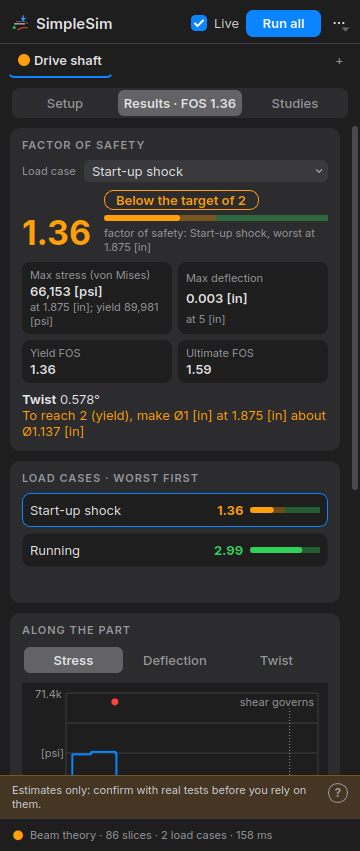
The panel. At the top: Live, Run all and ⋯ (Report…, SimpleSim Preferences…, Collapse Panel); then a tab per study (its dot green / amber / red by how it did), and Setup | Results | Studies. Setup holds numbered cards in the order you fill them in: 1 · Part (analyze as, material, axis), 2 · Supports (each with its engineering symbol: a hatched wall for Fixed, a triangle on ground for Pinned, a triangle on rollers for a Bearing, a stopped turning arrow for a Torque hold), 3 · Loads (the load cases as pills: click one to show its loads, right-click to rename or delete; each load is one line with its symbol, what and where, ✎ opens it to edit) and 4 · Options (folds away). Results shows the factor of safety big, with "Passes · target 2" (or below / fails) and a bar against the target, four tiles (max stress, max deflection, yield and ultimate FOS), the load cases worst first (click one to show it), the plot and the details. The footer says what ran: the method, how many slices, how long it took.
Studies (several at once). Each study is a whole setup of its own: supports, loads, material and options. + next to the tabs (or + New study on the Studies page) adds a copy of the open study to change, e.g. the same shaft on two bearings instead of clamped, or a heavier duty. Run all runs every study ticked Run (the open one always runs) and each keeps its own result; the Studies page shows them side by side with a Compare table (factor of safety, stress, deflection). Right-click a tab, or use the buttons on the Studies page, to rename, duplicate or delete a study. All the studies are saved with the part.
SimpleSim Preferences (⋯ menu, for every part): how finely parts are sliced, as a total number (80 by default) or per length (e.g. 25 per inch: longer parts get more slices), 8 to 2,000; extra slices always go at supports, loads, shoulders and across holes. A study can slice its own way (Options ▸ Slices). Also the defaults for new studies: target factor of safety, Live, stress colors, stress concentrations.
How it works. The part is cut into cross sections along its long axis (80 by default, see the preferences; automatic axis, or Pick a round face or a straight edge). Each section's area, centroid, bending stiffness (both directions, any shape) and torsion stiffness is measured from the model (round bars and tubes exactly; other shapes with a small 2D torsion solve). A 1D beam model along the axis then gives the reactions, the internal forces, the deflection and the twist, for any number of supports. Positions are measured from the start of the part (the red dot at one end of the dashed axis in the view).
Setup
- Analyze as: Beam or shaft (everything below), or Flat plate: a plate of one thickness, rectangular or round, found from the part's largest flat face, simply supported (resting on its edges), clamped all round, or (rectangles) clamped on the long sides and resting on the short ones or the other way round, under a Pressure over the whole face or a Force at the center (spread over a radius you give, e.g. a foot). Results by Roark's formulas: the largest bending stress and where (the center, or the middle of the long edges when clamped), the factor of safety and the center deflection; fatigue too when the case's loads cycle. A round plate with a hole in the middle (a flange, a cover, a washer) is solved as a ring, the hole's edge free. It warns when the plate has other holes (ignored), isn't one thickness, isn't a rectangle, is thick, or bends more than half its thickness (then it's stiffer than shown).
- Analyze as: Frame (structural members): every member of the part's Structural Member features is a beam; joints are where members meet (a member another ends on is split there). Joints: Welded (rigid: moments pass through) or Pinned (each member end turns freely on its joint: a truss, or single-bolt joints); with Welded, + Pin joint and a click makes just that joint a pin (a hinge or a single bolt). + Support then click near a joint: Fixed, Pinned, or a roller holding X, Y or Z only. Loads: Force at a joint, Moment at a joint, Load along a member (per length; click the member). Results: the most stressed member and its stress, every member's factor of safety and axial force (tension or compression), the largest deflection, buckling of the whole frame, reactions; the view shows the bent frame (exaggerated) and the most stressed member in red. Fatigue when a case's loads cycle.
- Material: the part's material (Edit Material…, or right-click the part ▸ Edit Material), or Custom… to enter Young's modulus, Poisson's ratio, yield and ultimate strength.
- Supports: Fixed (clamped), Pinned (held in place, free to tilt), Bearing (held sideways only, free to slide and turn) and Torque hold (stops it turning about its axis, e.g. the driven end of a driveshaft). Type the position or click ⌖ and then a face, edge or vertex of the part. If the supports don't hold the part the way the loads push it, the case says exactly what's missing.
- Pins and bolts (◎ on a support's row): the support's reaction goes through a pin or bolts in the hole there (put the support on the hole with ⌖). The hole's size, the part's thickness and width around it and the distance to the end come from the model. Pin: single or double shear, the pin's yield strength (or the part's); checks pin shear, bearing on the hole, tear-out to the end and the net section beside the hole. Bolt(s): the largest coarse bolt that fits the clearance hole (ISO grades metric, SAE grades inch), preloaded to 75 % or 90 % of its proof load; checks the load factor against proof, joint separation and slip (friction), and gives the tightening torque. How many share the load: with more than one, the holes like the clicked one nearest the support (not holes nearer another support) are the group, a row along the part or a pattern beside its axis too (a wide bracket's 2 × 2 bolts), and the support may sit anywhere among them. A Fixed support's moment is shared out over the group (Shigley's bolt group method): a moment that turns the part in the plane of the joint pushes the outer fasteners sideways, one that tips the part (along it, or twisting it about its axis) pulls them; the most loaded one is checked. A moment the group has no lever arm for (a single row's twist, one fastener) is said, and left to the clamped faces. The governing factor of safety includes them.
- Loads in load cases (each checked on its own; the worst is shown first): Force (±X/±Y/±Z), Axial force, Torque about the axis, Bending moment, Distributed force (from … to …). Place a force with ⌖ on a face away from the axis (a pulley's rim, a lever's end) and it acts there: the torque (and bending moment) it makes about the axis is included; ✕ next to "Off the axis by …" puts it back on the axis. The ✕ in a load's row removes that load; the ✕ beside the load case's name deletes the whole case (it asks first when the case has loads). + Load always works: with no load case left it starts one.
- Cycles (per load case, under its loads): Static, Repeated (the loads come and go), Reversed (they swing to the opposite direction and back) or Between a fraction and full (e.g. 0.5 = from half to full). Anything but Static gets a fatigue check (DE-Goodman, metals, with the fatigue notch factors of the stress raisers) and a life estimate ("lasts about 230,000 cycles", or "lasts indefinitely" below the endurance limit). Life: how many cycles it must last; indefinite checks against the endurance limit, a number (1,000 and up) against the strength at that life. With two or more cycling cases that give their number of cycles, Miner's rule adds up the damage of the whole duty under All load cases (1 = it fails; "the whole duty lasts 2.3 times over").
- Bolt Calculator (Evaluate tab, parts and assemblies; no study needed): a bolted joint on its own. Pick the bolt size (inch or metric) and grade (SAE 2 / 5 / 8, ISO 4.6 / 8.8 / 10.9 / 12.9, A2-70), how many bolts share the load, the preload (75 % of proof for reusable joints, 90 % permanent) and the threads (dry, zinc, lubricated: the nut factor); then the tension pulling the joint apart, the sideways load, the clamped thickness and material, and the friction between the parts. It shows each bolt's preload and tightening torque, the joint constant, and the factors of safety (proof load, separation, slip; shear and bearing if it slips) in green or red against the SimpleSim target, as you change anything.
- Analysis (Evaluate tab): the part colored in bands, with a legend of the areas, in a small window (the part comes back when it closes; it redoes itself when the part is rebuilt). Draft analysis for molding and casting: pick the direction the part comes out of the mold and the least draft; green faces release, yellow ones need draft, red ones are undercuts. Thickness: each spot measured straight in to the far side of the part; walls thinner than Thinnest wall show red, the thinnest is named (3D printing, casting). Curvature: flat faces gray, then by radius from blue (gentle) to red (tight), the tightest named (fillets a cutter or a nozzle can't make). Zebra stripes: upright light bars reflected in the part; where faces meet smoothly the stripes run on, at a crease they kink or jump. They follow the view as you turn it.
- Cost Estimate (Evaluate tab): a rough price, each and for a batch, from the part's own geometry and rates you can change (a sense of where the money goes, not a quote). Made by CNC milling: the stock block (the part's box plus an allowance) by weight, roughing the rest away at the material's removal rate, finishing its surface, handling per side; 3D printing: filament for the walls and infill, print time from the printer's flow; Sheet metal: the blank, laser cutting every edge of the flat pattern, a time per bend; Weldment: the members by weight from the cut list, a saw cut and a weld per end. Setup is shared by the batch's Quantity; Own price overrides the material's price per kg. It opens on the way the part looks made (sheet metal, a weldment, plastic: printing, else CNC).
- Design Check (Evaluate tab): what will be hard to make, worst first; click one to see its faces or edges in red (problems) or amber (warnings). Made by CNC milling: walls thinner than Thinnest wall, holes smaller than Smallest hole (tiny drills break), holes deeper than Deepest hole × their diameter (8 by default: drills wander and chips pack), sharp inside corners along the Cutter axis (a round end mill leaves at least its Cutter radius: add a fillet that size or bigger), and inside rounds tighter than the cutter. Made by 3D printing: thin walls, holes under 2 mm (they close up), and whether the part fits the Printer bed any way round (if not: Split and Save Bodies).
- Print Orientation (Evaluate tab, for 3D printing): every way up the part could print (each big flat face on the bed, and the six axis directions), best first: the least area hanging over more than the overhang angle (45° from vertical suits most FDM printers; change it), then the lowest. Pick one to see its overhangs in red, the view turned to it; Export 3MF this way up writes the part rotated onto that face, resting on the bed, so the slicer gets it the right way round.
- Temperature change (per load case, bars and shafts): how much warmer (+) or colder (−) the part is than when it was fitted, in °F (inch documents) or °C. Ends held along the part (Fixed, or Pinned with the axial direction held) stop it growing or shrinking, so it pushes or pulls on them: σ = E α ΔT, with α the material's thermal expansion; a free end just moves. A case can be only a temperature change.
- Own weight (Options, every kind of study): the part's weight (its material's density × g) is added to every load case, acting along the direction you pick (−Y is down in the usual orientation, with Top as the ground). A custom material needs its density for this.
- Options: Rotating shaft adds a fatigue check to every case (bending reverses every turn; torque and axial loads follow the case's cycles) and its first critical (whirling) speed: give its Speed (rpm) and + Mass on it for each gear, pulley or flywheel (kg, where: type it or ⌖; with Own weight on they weigh on it in every case too); running above half the critical speed warns (Shigley). Natural frequencies (vibration) (beams and shafts) lists its three lowest natural frequencies in Hz and how each mode moves it (bending, axial, twisting): its own mass and the masses on it (+ Mass on it shows with this option too: a motor or gearbox it carries), held by its supports. Keep anything that shakes it (a motor's speed, a fan's blade rate) well away from them. Stress concentrations on/off, and the target factor of safety (results under it show amber, under 1 red).
Results (live; Live off and Run to update by hand): the governing factor of safety (yield, or fatigue / buckling when those are lower), the largest von Mises stress and where, yield and ultimate FOS, the largest deflection, the twist, the buckling load factor when something is compressed, the support reactions, and a plot along the part (stress with the yield line and the stress raisers as red dots, deflection, twist; hover to read values, with the bending and shear parts of the stress, and see a blue ring at that spot on the part). Near a free end with a load at its tip the stress curve runs level: bending has died away and the shear stress (constant along the part) governs; the plot says "shear governs" there. In the view: green rings for supports (doubled when Fixed), amber arrows for the loads, a red ring at the most stressed section and the bent axis (dashed, exaggerated). Stress colors on the part paints the model from blue (low) to red (the case's highest stress, stress raisers included), with the scale under it.
Stress raisers. At a shoulder on a round shaft the stress is raised by Peterson's Kt for its fillet radius (bending, axial and torsion separately); a shoulder without a fillet is treated as a sharp corner and flagged ("add a fillet"); a hole straight across the shaft, a keyseat or flat, and a groove (a retaining-ring or O-ring groove: a step down and back up close together) get typical (approximate) factors. Sudden changes of a section that isn't round are pointed out, since no factor is applied there.
Report… (⋯ menu) saves everything as one web page (setup, each load case's results and plots, stress raisers, warnings, method) to share or print to PDF from a browser.
Sizing hint. When a round section governs and the factor of safety is under the target, the results say what diameter there would reach it ("make Ø0.75 [in] at 3.2 [in] about Ø0.93 [in]").
What it can't do (it says so when it applies): it's beam theory, so short stubby parts, plates, brackets and loads right next to holes are only rough; a section in several pieces (slots, frames) is treated as one; loads act on the axis; printed plastics are weaker than their listed strength (especially across the layers). For those, treat SimpleSim as a first check, not the last word.
Variables, tables and configurations
- In any value box — dimensions, depths, radii, hole sizes, mate distances, configuration cells — a value that starts with
=is a formula:=thick * 2,=.25*2. It's kept and worked out again whenever its variables change, and the box shows a blue f(x) and the value; click into it to see and change the formula. Anything typed without=is worked out once and kept as a plain number:.25*2becomes0.5, andthickbecomes thick's value now (the box says so as you type: "Fixed at 10 mm; start with = to keep it linked to thick"). Typing a plain number into a formula's box makes it a plain value again. - Tools ▸ Variables: this part's variables, plus linked variable tables shared by many parts and assemblies: Excel
.xlsx, LibreOffice.ods,.csv(Google Sheets), or a.kvartable made with File ▸ New Variable Table. Columns: Name, Value, Unit, Description. Copy/paste cells to and from any spreadsheet. Saving the spreadsheet updates every open part. To add a variable, type its name in the empty last row ("New Variable"), then its value (or type a value there first: it's named var1, ready to rename); right-click a variable ▸ Delete, or press Del, to delete it. There are no Add or Delete buttons. - Configurations (top of the feature panel): variants of a part in one file. The Configurations button beside the list opens the Configuration Manager under the 3D view (drag the line above it to make it taller or shorter): a row for each configuration (double-click a name to rename it, the first one too) and a column for each thing that changes. Type a name in the empty last row ("New Configuration") to add one, copied from the active one. Right-click a name ▸ Show in Part or Delete (or press Del); right-click a column's title or a cell ▸ Remove Column.
- Add Column… asks Suppression or A value; the feature tree gets a blue outline. For suppression, click the features (a column each); for values, click a sketch to drop down its dimensions (Length1, Diameter2 …) and its Gear Profiles' values (Gear1 Teeth, Gear1 Module …), or a feature to drop down its values (Depth, Count …), then click the ones you want. The part's variables are listed beside them to tick, so a variable can differ per configuration (thick 10 in one, 25 in another; its cells start gray, at the variable's own value). Done adds them.
- Material, finish or color (the third choice): pick The whole part or one body, and tick Material, Finish and Color (a column each, "Part · color"). A cell drops down the names (Alloy Steel; Black Oxide or "Paint, Red"; Black, White or any color code, or #1a1a1a); an empty one is gray at what it would be anyway. The part number's color code follows each configuration's color: P-0001-BK in Black, P-0001-WH in White.
- Or right-click a feature ▸ Configure Suppression, or right-click a value box in a feature, a dimension in a sketch, a Gear Profile in a sketch or a variable in the Variables panel ▸ Configure Value.
- Cells take a number (units shown, e.g.
25 mm) or a formula starting with=(=thick * 2), shown as a blue f(x) and its value; the formula shows while you're typing in the cell. Without=the cell is worked out once (thick * 2becomes20 mm). One that can't be worked out turns red. Click a suppression cell to switch Suppressed / Unsuppressed. - A cell's equation can use the row's other columns: type a quote and pick one from the list, or click a column's title while typing (
="Length1 [Sketch1]" / 4,=thick * 2 + "Depth [Extrude1]"). Renaming the feature or dimension keeps it working. If cells end up using each other in a circle (A uses B, B uses A, or through a variable), they turn red with the loop spelled out ("Loop: Depth [Extrude1] → Length1 [Sketch1] → Depth [Extrude1]") and the part keeps the last values that worked; a length added to an angle, a column that was removed, or a title that matches no column turns red too. Paste and Import CSV say first if they'd make a loop. - Copy / Paste work with Excel and LibreOffice; Export CSV… / Import CSV… save and read a file (columns matched by name, a new row makes a new configuration; you see what changes first).
- Done keeps it all (one Undo), Cancel puts the part back.
- Only the values a feature uses in its settings are offered (an Equal distance chamfer: its Distance, not an Angle). A column whose value its feature stops using (you switch the chamfer to Equal distance later) stays, in gray, with why ("Not used: Chamfer1 is Equal distance"); it does nothing until the feature uses it again.
- While the manager is open, features in the feature tree with a suppression column have a thin solid blue outline, and ones with configured values a dashed one. The outlines go when it closes. A value the configurations set always has a thin blue outline with round ends: its box in the feature's panel and its dimension in the sketch.
- While it's open you can turn, pan and zoom the 3D view and switch the ribbon's tabs (the View tab's views and Zoom to Fit work); the part's other commands wait until it closes (their buttons and the menus are grayed out meanwhile).
- Every sketch dimension has a name, its type and a number (Length3), shown as
Length3 [Sketch2]in the manager; feature values the same way (Depth [Extrude1]). Assemblies (right-click a component) and drawings pick a configuration; assemblies have configurations of their own (see Assemblies).
Sheet metal (Sheet Metal tab)
- Base Flange/Tab: a closed sketch makes a flat tab; an open chain of lines makes a bent part (bends at every corner). Set thickness, inside bend radius, K-factor and depth, or pick a Gauge (steel and stainless gauges, aluminum sheet in inches, metric sheet) to fill all three with typical air- bending values (inside radius about the thickness, 1.5× for aluminum; K about 0.44); change any of them and it shows Custom.
- Edge Flange: click edges along the outside of the sheet's flat faces; length, angle, flip. A flange (or hem) that would run into the rest of the part is refused, saying so, rather than built through it.
- Miter Flange: the same flange shape along several edges, mitered where they meet. Sketch its shape at the end of an edge, on a plane at right angles to it (the sheet's small end face, or the Right/Top Plane when the edge starts there): one line straight up for a plain flange, or a chain of lines (up, then out) for a lip. Start it at the corner of the sheet's top or bottom face; the flange goes on that face's side. Select the sketch and click Miter Flange: it goes along the edge the sketch starts on; click the edges joined to it, one after another, to carry it round the corners (clicking a face takes all its edges, so the top face makes a closed tray). Each corner is cut square to the sheet, Gap apart. The lines' lengths are measured to the sharp corners, as drawn; a single line h high is an Edge Flange of length h − bend radius. The flat pattern unrolls the mitered bends exactly.
- Convert to Sheet Metal: makes a part that's already a sheet (the same thickness everywhere: a sheet metal part from a STEP file, a bent part modeled as a solid) into sheet metal, so it has a flat pattern and takes the other sheet metal features. Click the flat face that stays put in the flat pattern; the thickness is measured there. Round bends (any radius) are found by themselves. Sharp edges where the sheet bends: click them (inside or outside of the corner) and they're rounded into bends of Bend radius (to start, the thickness). K-factor sets the flat pattern's size. Walls that meet at a sharp corner without a bend between them (a shelled box's corners) can't be unfolded yet: it says so.
- Corner Relief: where two flanges' bends meet at a corner of the sheet, a cut so it bends cleanly: Round (a circle Size across) or Square (Size a side), centered where the two bend lines cross in the flat pattern, or Tear (only the two bends' ends, Size back from the corner). It goes on every such corner, or click edges next to the corners you want. The flat pattern shows exactly that shape.
- Closed Corner: the two flanges at a corner carry on to close it: one over the other's end, flush with its outside, the other up to Gap short of it (The other flange on the outside swaps them). Every corner, or the ones you click edges next to. The flat pattern includes the longer tabs; a Corner Relief after it still cuts the bends' corner.
- Hem: an edge folded right back over the sheet (180°): click the edges; length, Gap between the sheet and the folded edge (closed = lying on it), and which side it folds to. The flat pattern includes it.
- Sketched Bend: draw one or more lines right across a flat face of the sheet (a sketch on the face, or on a plane level with it), select the sketch and click Sketched Bend. Each line is the bend's centerline (the middle of the bend in the flat pattern); the side away from the face's middle turns by Angle (the sheet's bend radius and K-factor) toward the side the sketch is on. Reverse direction bends it the other way; Fix the other side turns the side with the face's middle instead. Nothing may cross the bend's band (a hole or a cut there can't be bent: it says so), and a fold that would push a flap through the rest of the sheet is refused; holes and flanges elsewhere bend along and the flat pattern stays exact. Several lines: the ones farthest from the face's middle are folded first.
- Jog: a step in the sheet (a Z), drawn the same way: a line across a flat face where the step starts. Two bends the opposite way round lift the far side by Offset (measured between the same faces, toward the sketch's side; Reverse direction steps down) at Angle (90° for a square step), and it carries on parallel. The offset has to be more than the two bends alone step up ((2R + T)(1 − cos angle)). For two bends one behind the other (a Z), use two Sketched Bends.
- Flat Pattern shows it unfolded; Export Flat Pattern (DXF) writes the outline (layer CUT, exact arcs and circles) and bend lines (layer BEND) for laser/plasma/waterjet. Holes and cuts made after the flanges are in the flat pattern. DXF files are plain ASCII (R12): °, ± and Ø in their text are written as AutoCAD's %%d, %%p and %%c, which every DXF reader shows as the symbols.
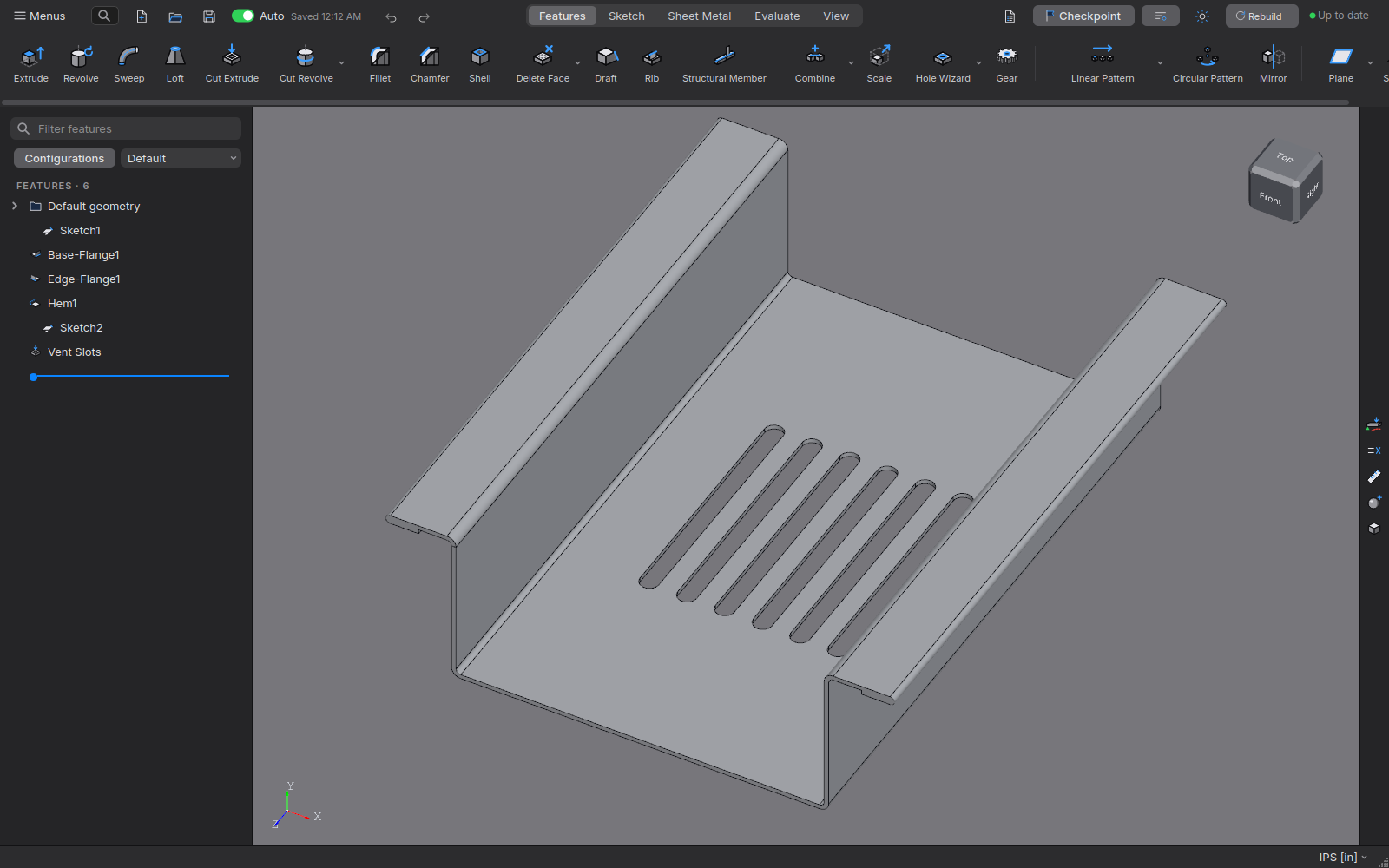
Assemblies
- STEP assemblies: opening a STEP file that holds several parts (an assembly from another CAD program, or an Onshape Part Studio) asks how to open it. Open as Assembly makes a new folder (named after the file; beside it, or in your first Projects folder when the file is somewhere else, e.g. Downloads; Change… picks another) with a part file for each part and an assembly file for the whole and for each subassembly, every part placed where it is in the file, with the file's part names. Copies of the same part (or a pattern's copies with the same name) share one part file. Nothing already there is overwritten: a second time makes "Name (2)". A progress bar shows how far it is; Cancel stops it and leaves nothing behind. Open as One Part opens it as a single imported part, as before. A file with one part opens as a part without asking.
- Opening an assembly rebuilds its parts several at a time, one per spare processor core (as many as your computer's cores and free memory allow; with 1-2 cores, one at a time). The parts come out the same either way. Options ▸ General ▸ Performance ▸ Rebuild parts on several cores turns it off.
- Keeping up with saved parts: an open assembly follows its parts' and subassemblies' saved files. Save a part in its own window (or let Auto Save do it) and the assembly shows the change on its own, without clicking over to it; only the parts that changed are loaded again, a little at a time, so the window you're working in keeps going. Unsaved edits don't show until they're saved. With a command open in the assembly it waits until you finish. A very big assembly whose last update took a moment to show, or one with a part that has to be rebuilt on a computer with no core to spare, says in its status bar that a part was saved and updates when you click on it.
- Configurations: one assembly can hold several versions, like a part's configurations. Pick one with Configuration at the top of the assembly's list; its ⚙ button (or Assembly ▸ Configurations) opens the Configuration Manager under the view, the same table a part has: a row per version and a column for each thing it changes. Double-click a part's cell to pick the part's configuration or Suppressed; click a pattern's or mate's suppression cell to switch it; type a distance or angle mate's value. Add Column… adds what isn't in the table, including the assembly's variables (a value per version, so a mate that follows a variable by formula changes with it; its cell is gray and shows what it works out to). Right-click a column ▸ Remove Column takes one out (a part added later still gets a column). Add (the "New Configuration" row), rename (double-click the name), delete and Show in Assembly (right-click a name) work as in a part, and so do Copy, Paste and CSV. Done keeps it all as one undo step; Cancel puts it back. Right-click a part ▸ Suppress leaves it out of the active version. Drawings and bigger assemblies can show any version.
- Flexible subassemblies: right-click a subassembly ▸ Make Subassembly Flexible: its parts move the way its own mates allow (a hinge swings, a pin slides); drag them, or mate them to the rest of the assembly. Make Subassembly Rigid puts it back as one piece. Motion Study moves them too.
- Components in the tree: click a component in the left panel and it lights up in the view (Ctrl / Shift for several).
- Folders: select components in the list (Ctrl / Shift for several), right-click ▸ Add to New Folder and type its name. Drag components onto a folder to put them in it, or out of it to take them out (or right-click ▸ Move to Folder). Click a folder and all its components light up; right-click it to rename, hide / show or isolate them, or Delete Folder (the components stay in the assembly).
- Box selection: hold the left button on empty space and drag a box. Dragged to the right it selects the components wholly inside it; dragged to the left, also the ones it only touches. Hold Ctrl to add to what's selected; a plain click on empty space still clears the selection.
- Hover: the face or edge under the cursor lights up as the mouse moves, as in parts.
- Section View (Evaluate tab): cut the assembly open with the Front, Top or Right plane (offset, flip) to see inside, as in parts.
- Gear Pair (Assembly tab; in a part, Insert ▸ Gear Pair… makes a new assembly): design two meshing gears from what the drive needs. Choose Spur, Helical (helix angle and the pinion's hand; the gear gets the other) or Internal (a pinion inside a ring), the ratio (2.5 : 1, or tick Teeth for the two tooth counts), the center distance (or select a round face or circular edge on each of two parallel shafts and press Pick two shafts), the pressure angle and the sizes to try (standard modules, ISO 54 first choice or first + second, or one fixed size; diametral pitch for inch). The list shows the combinations that mesh there, best first (exact ratio, small profile shift, first-choice size), each with its ratio error and the total profile shift Σx needed to hit the distance; a positive Σx goes mostly to the pinion, a negative one mostly to the gear, and a pinion is never left badly undercut. Click one: the picture shows the two gears meshing (▶ Turn runs them) and the card gives teeth, diameters, shifts, working pressure angle, contact ratio (warned under 1.2) and the ratio. Tick Strength check for a quick Lewis bending and Hertz contact estimate (torque, or power and speed on the pinion; the two materials; how the teeth are made) with factors of safety against your SimpleSim target; weak pairs move down the list. It's an estimate: check a real design with AGMA 2001 or ISO 6336. Make saves the pinion and gear as parts in the folder shown (with the name prefix, never overwriting), puts them in the assembly meshing, each on its shaft (bored to fit) or on an axis of the assembly, and couples them with a Gear mate so turning one turns the other (an internal pair turns the same way). One Undo takes it back.
- Insert Fastener (Assembly tab; standard screws, bolts, nuts and washers): socket head, button head, flat head (countersunk) and pan head (Phillips) screws, hex bolts, socket set screws, hex and nylon-insert lock nuts, flat, fender and split lock washers and dowel pins, ISO (metric, M2 to M24) or ANSI (inch, #4 to 3/4). Flat head screws, set screws and dowel pins sit flush: their top level with the face you clicked. With a washer and nut, choose which washer (flat, fender, split lock) and which nut (hex, nylon lock). Click the rim of a hole first (on the side the head or nut goes) and the size that fits the hole (a tapped hole's own thread size: Ø4.2 is M5) and a length that reaches through it are picked; the fastener is mated Concentric with the hole and Coincident with the face. In a counterbored hole, click either rim (the counterbore's on the top face, or the hole's on its floor): the screw is sized for the hole and its head sits on the counterbore's floor. Inch fasteners are named with their fraction (ANSI SHCS 1/4 x 0.875 in) in the tree, the description and the BOM (the library file says 1-4: a file name can't hold "/"). Select the rims of several holes (Ctrl+click) and each gets one (like Smart Fasteners), in one undo step. For screws and bolts tick Washer under the head and, for a hole right through, Washer and nut on the far side: the length grows to take the whole stack. Thread: Fully threaded, or Partially threaded with the standard thread length from the tip (ISO 4762 cap screws 2d + 12, ISO 4014 hex bolts 2d + 6, ANSI 2D + 1/2 in for cap screws and 2D + 1/4 in for bolts; a screw too short for that is threaded all the way); the dialog says how much is threaded. Screws, bolts and nuts show their thread as a cosmetic thread (a helix drawn over the threaded length, in a shade that shows on the finish). Material, Finish and Finish color start at the defaults for that type (Options ▸ Materials & Finishes, for all documents or just this assembly) and can be changed for this insert; washers and nuts in the stack get their own types' defaults. Fasteners are ordinary parts, made the first time a size is used in a material and finish (each is its own file and BOM line, like "ISO 4762 M5x20 Alloy Black Oxide"), in
Documents/Crusade/Fasteners, with Description, PartNo and Finish for the BOM. - Click a part in the 3D view: it's selected in the component list too, and the context toolbar offers Open Part, Mate, Move Component, Fix / Float, Hide and Isolate. Right-click it for its full menu (as in the list) plus Select Other. With planes shown, a click through a plane picks the part behind it; Shift+click picks the plane (a plane with nothing behind it picks as before).
- Quick mates: click a face of one part, Ctrl+click a face of another, and the toolbar offers the mates that fit (two flat faces: Coincident, Parallel, Perpendicular; two round ones: Concentric, Parallel; round and flat: Tangent, …). One click adds the mate (one that can't be solved is taken back, with the reason); Distance… / Angle… (two flat faces) open the panel set to that type for the value; "Mate…" opens the full panel.
- Tab hides the part under the cursor, Shift+Tab shows the last one hidden (like SolidWorks).
- Change Transparency (right-click a part, or its context toolbar): draws it see-through so you can see inside; saved with the assembly. Make Opaque puts it back.
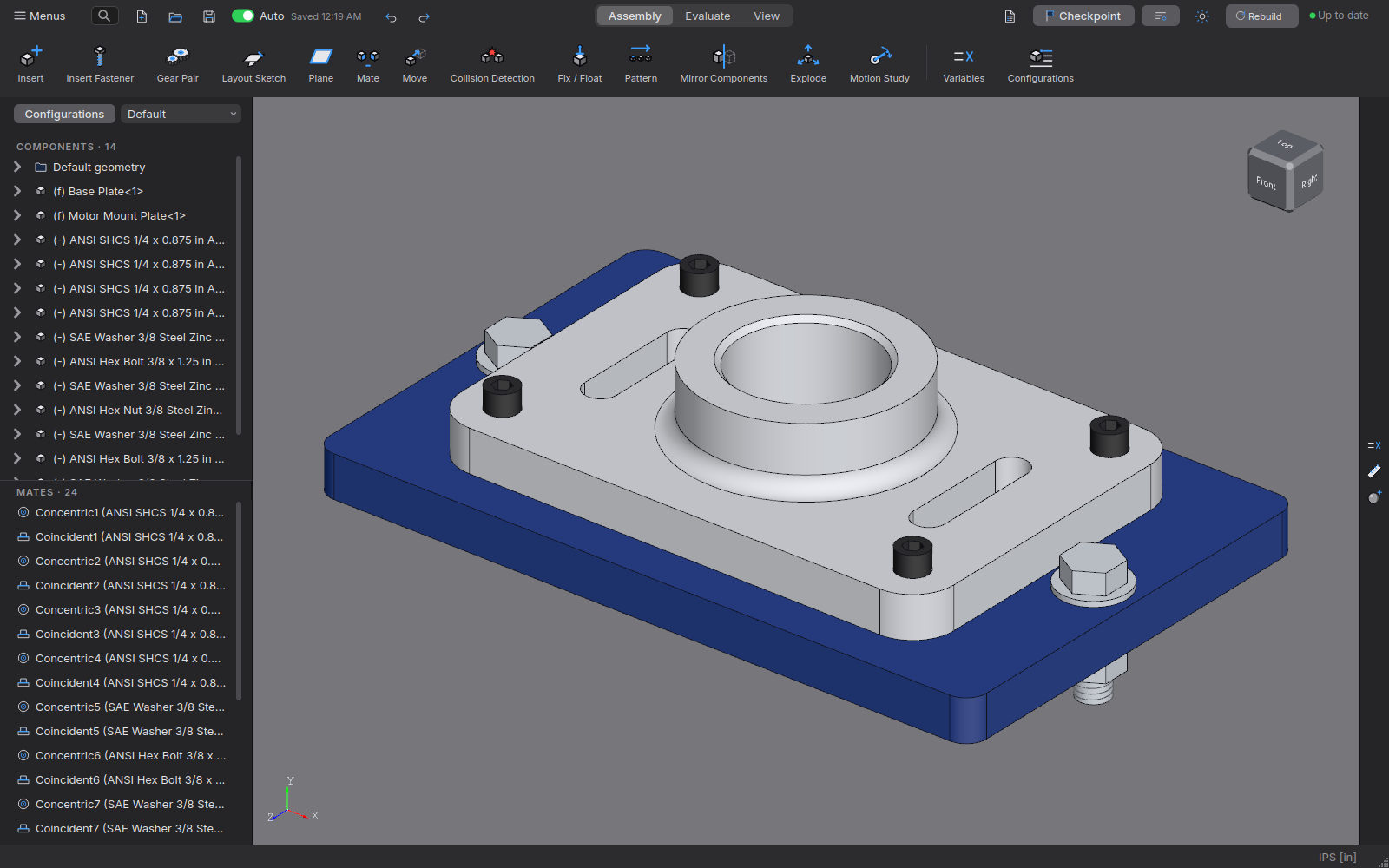
Insert Components (Ctrl+I) opens Crusade's own window, a narrow one against the assembly window's left edge so the 3D view stays in sight. From picks where to look: Open now (the files open in Crusade, first when there are any), In the vault (when you're signed in to one) or On this computer (your Projects folder). Click a folder card, then click the part or assembly to insert, each with its picture (Ctrl or Shift for several); its see-through copy shows in the 3D view at once, and a double-click goes on with that one. Vault files that aren't on this computer are listed as Not on this computer; Crusade gets them, with the files they use, when you insert them (when the vault can't be reached, a line says why). Next shows them in the left panel: set how many of each go in, Add More… for more, then OK. Each one then rides on the mouse in the 3D view, see-through: click to put it down there (each one its own undo step), and the next follows. Before it goes down, X, Y or Z (the keys, or the buttons in Place Components) turn it a quarter turn about the assembly's axes, Shift+the key the other way. OK (or Enter, or a right-click) puts the rest in side by side; Close (Esc) stops, and the rest don't go in. The first part of an empty assembly stays at the origin (fixed there) but turns with X, Y, Z first too. Use the System's File Browser… picks files anywhere.
Copy (Ctrl+C) and Paste (Ctrl+V) components already in (also on the right-click menu) for another of the same part: it comes in unmated and floating, beside the others. In the list, (f) marks a fixed part and (-) a part its mates still let move some way (click a part and its mates are tinted in the mates list; Ctrl / Shift pick several mates to suppress or delete them together, and a picked mate shows its faces in the view); a part its mates hold every way has no mark. The first part goes in fixed: right-click it ▸ Float to move and turn it like any other, Fix to fix it again where it is, or right-click ▸ Move… to place it (Rotate X, Y, Z) and leave it fixed there. Drag a floating part in the 3D view to move it, right-drag to turn it — mates stay satisfied while it moves (a pinned part slides along its pin). Ctrl+drag a part's round edge (a hole's rim, a shaft's end) for a copy: it follows the mouse and snaps onto another round edge; drop it there and it's fastened (Fastened mate), drop it anywhere else for an unmated copy; Esc cancels. Select faces first and press Mate to start from them, or pick after. The Mate panel picks the type from what you click (Auto): two round edges make Fastened, a round face with a round face or edge Concentric, a round face and a flat one Tangent, two flat faces (or a straight or round edge on a flat face, or a point on anything) Coincident. Click a type in the list to choose it yourself (hover one for a line about it): it stays for the next mates until you close the panel, and the outlined Auto goes back. The selections still to pick are gray. Advanced and Motion open with a click (or by themselves when Auto picks a type in them). Green Apply adds the mate and starts the next one; red Close closes the panel. A mate that only fits the other way around (a face on a plane facing the same way) goes in that way, Flip Alignment showing it; one that can't hold where the other mates hold the part says which mates it conflicts with. Mate types: click two faces — coincident, concentric, distance, parallel, perpendicular, angle, tangent (a cylinder on a flat face, or two cylinders side by side; Aligned = one inside the other) and group (two parts keep their current relative position) and fastened (click a circular edge on each part — a hole's rim, a shaft's end — and they become concentric, with the part turned the least amount that lines its standard planes up with the other part's; Flip turns it around). Advanced: width (two faces of a part centered: between two faces, as a tab in a groove, or on one face or plane; Save is ready after the third), symmetric (a flat face as the mirror, then one face on each part), hinge (two round faces for the axis, two flat faces to stop the slide). Distance and angle mates can be a limit (free between a minimum and a maximum). More advanced: profile center (two flat faces, centers together), path (a vertex rides along a straight or circular edge), linear coupler (part 2 slides a set ratio per unit part 1 slides). Mechanical: slot (a pin's round face plus the slot's two round end faces: the pin stays on the slot's center line, free between the ends), cam (a follower's round face rides on whichever of up to four cam faces it is nearest to), gear (ratio = pitch diameters 1 : 2; turn one, the other turns), rack and pinion (pinion pitch diameter; Reverse flips the direction), screw (pitch per turn; Left-hand flips it), universal joint (two shafts turn together). The mechanical mates measure motion from where the parts were when the mate was made — drag or turn a part and the mated one follows. As a mate applies, the parts glide into place (straight there with Options ▸ General ▸ Smooth animations off). Each mate in the MATES list shows its type's icon. The assembly has an origin and planes of its own: Default geometry at the top of the components list holds the Origin, the X, Y and Z axes and the Front, Top and Right planes (hover one to see it in the view; View ▸ Reference Planes shows the planes and the origin all the time; click the eye on the Origin's or a plane's row, or right-click ▸ Hide, to leave that one out). With Mate open, click one there (or, with them shown, a plane or the origin in the view) to mate a part to it: a shaft concentric with an axis, a face on a plane, a vertex on the origin (Coincident and Distance take a vertex now: onto a point, a face or an axis), grounding the part without Fix. Each part has its own Origin, X, Y and Z axes and Front, Top and Right planes under its row in the list (open it with its arrow): click one with Mate open to mate to it, such as the part's origin on the assembly's. While Mate is open the list is in its panel, under Components below Mate Selections, so these are always in reach. Two planes on a Coincident or Distance mate face the same way (Flip Alignment turns one around), so a part's Front Plane on the assembly's doesn't turn the part over. Planes in an assembly (Assembly ▸ Plane): the same types as a part's Plane, made from the assembly's planes and ones made before, a part's flat face, edge or vertex, or a sketch's line or point. For Mid plane, click two faces of a part for the plane half way between them. A plane rides with the part it's made from. It's listed above the layout sketches (eye to show or hide, double-click to change it, right-click to rename or delete it), and Mate can use it. Layout sketches (Assembly ▸ Layout Sketch, or double-click / right-click a plane in Default geometry): a sketch that belongs to the assembly, on its Front, Top or Right plane or a plane made in the assembly (right-click it ▸ Layout Sketch; the sketch moves with that plane). It opens in a part window with the assembly's parts there to see and to snap to; draw with every sketch tool, then ✓ brings it back (✕ changes nothing). It shows in the assembly as lines and dots and in the list under Default geometry. With Mate open, click its lines, points, circles and arcs to mate parts to them: a shaft concentric with a line or circle, a vertex on a point or line, a face on a line. Change the sketch (double-click it) or move its plane and the parts mated to it follow, moving as little as they can (a part free to turn slides along, not tipping over). Right-click it to hide, rename or delete it (deleting takes its mates too). A part's sketches in an assembly: open a component in the list to see its part's sketches; the eye (or right-click ▸ Show / Hide) shows or hides one in this assembly only, for that component alone (the part file isn't changed). With Mate open, click a shown sketch's lines, points, circles and arcs to mate to them, as a layout sketch's; change the sketch in the part and the parts mated to it follow. Edit Part (right-click a part in the assembly): the part opens over the assembly, with the other parts around it, see-through, in their places. Their faces, edges and points work like the part's own: sketch on another part's face, use Convert Entities on its edges, extrude Up To Surface to it. The part keeps a copy of those parts' shapes, so it still opens on its own (with the shapes as they were last seen); with the assembly open, the copies follow when those parts change (the part is saved then, and the corner says so: "Updated Lid from Base Plate"; a part open with unsaved changes, or a read-only file, is left as it is and shows the amber arrow). A part that already uses this one is shown but can't be used (that would go round in a loop), and neither can another copy of the same part. Exit Edit Part (the bar above the view) saves the part if it changed and goes back to the assembly. The assembly has to be saved once first. In the part's tree, a feature that uses another part has a small arrow at the end of its row: blue when it follows that part, amber when the part was opened alone and the assembly or that part changed since (open the assembly to update it), gray with a lock when locked, red when broken. Right-click such a feature for Lock References (the shapes stay as they are until Unlock References) or Break References… (they stay as they are for good). New Part in Assembly (Insert menu): type the new part's name (it's saved next to the assembly), click a flat face of a part or a plane (the assembly's Front Plane when you click nothing), then ✓. The part goes in fixed, with its Front Plane and origin on what you clicked, and opens with Edit Part and a sketch on its Front Plane. Right-click a component to Hide / Show it or Isolate it (only it is shown; Show All Components brings the rest back); hidden parts are grayed in the tree, still take part in mates, and stay hidden when saved. Right-click a component for Replace Part… (swap the file; mates re-find their faces by geometry). The panel lists what to click for each type, and the face or edge under the mouse lights up before you click it. Finish This Mate, Start a New One (under the mate's settings) adds the mate and clears the selections for the next one, without closing Mate; each mate is its own undo step. Double-click a mate (or right-click ▸ Edit Mate…) to change its type, value, flip, limits or faces; right-click also suppresses or deletes it. Motion Study (Assembly tab): drive the mechanism and watch it move. Rotary motor: pick the part and one of its round faces as the axis, and how far it turns (720° = two turns); the parts mated to it follow (gears, linkages, a pin in a slot). Drive a mate: a distance or angle mate goes from one value to another (slide a carriage, open a lid). Explode and collapse: the parts fly out to their Exploded View places (and back, with There and back): how it goes together, as a GIF. Frames and Speed; There and back for a smooth loop. Calculate solves every frame (each from the one before), Play animates it in the view (the slider scrubs), Save GIF… writes an animated GIF to share. The parts stay where they were; the settings are saved with the assembly. Move Component, Collision Detection (Assembly tab, on or off: a part you drag stops where it would run into another, the faces that meet show red and the status line names the two; parts that only touch, like a pin in its hole or mated faces, slide on freely, and a press fit can still move as long as it doesn't dig in deeper), Fix/Float, Interference Detection, Clearance Check (Evaluate tab: the smallest gap between the selected components, or between every pair when fewer than two are selected; closest first, touching parts as 0, the gaps drawn as amber lines between the nearest points), Bill of Materials (with each part's Finish), Mass Properties (from each part's material, with the moments of inertia about the assembly's center of mass when every part has one; when some parts have no material it says so first, with a warning listing each such part and how many of it there are, gives the mass as "at least …", and Select Them selects those components). Parts show in the color chosen in their own window (Appearance), else their finish's or material's color; parts without a material get the assembly palette. Component Pattern (in a row or around an axis): pick the components to copy in the list or the view, then up to three directions (each with Spacing, Instances and Centered, which copies both ways) or an axis (Instances over a Total angle). The pattern is a row in the list (LocalLPattern1) with its copies under it: they follow the components they copy, use the same configuration and look, count in the Bill of Materials and show in drawings. Double-click the pattern to change it; right-click it to suppress or delete it (with its copies). Delete a single copy to leave it out (Put back deleted copies on the pattern's page brings it back). Copies made by Component Pattern in Crusade 0.0.3 or earlier stay ordinary components. Mirror Components: select components, pick the Right, Front or Top Plane (and an offset): a copy of each on the other side, placed and turned as its mirror image (the same part file, so exact for parts symmetric about one of their own planes — most brackets, plates and hardware; a handed part needs its own mirrored part). Exploded View spreads the parts out (Move Component then sets a part's exploded position). Insert an assembly into another as a subassembly. Variables and linked tables work here too.
Drawings
Sheet Properties (sheet size, scale, title, drawn by, company): sizes A4 to A0 and ANSI A to E, each Landscape or Portrait (Orientation), or Custom with its own width and height (in the drawing's units; at least 210 × 148 mm so the title block fits). Each sheet of a drawing has its own size, and its PDF page is that size. (A drawing with a new size, portrait or custom sheet opens in Crusade 0.0.2 on the nearest size it knows.) Show border zones puts zone numbers along the top and bottom of the border and letters up the sides, so a spot can be called by its zone (B4): about 50 mm zones on A sheets (A3: 1–8, A–F), about 4¼ in on ANSI sheets. They read as ASME has them (numbers from the right, letters from the bottom), or as ISO has them on a first-angle drawing (numbers from the left, letters from the top). On for new drawings; drawings from before keep their look. It also sets the Title block layout: Standard, Compact (one row: title, drawing number, scale, sheet, revision) or ISO 7200 (adds Checked, Approved and the general Tolerances, from the drawing's File ▸ Properties: CheckedBy, ApprovedBy, Tolerances; ISO 2768-m or ±.010 / ±1° by default), and a Company logo (any image; it's kept inside the drawing and printed in the PDF; the DXF leaves it out). File ▸ Save as Template… keeps this drawing's set-up (sheet, scale, title block, logo, company, units, its own properties and notes such as "unless otherwise specified…") in Documents/Crusade Templates; new drawings start from the template chosen in Preferences ▸ Drawings (you're asked the first time), and File ▸ Apply Template… puts one on an existing drawing.
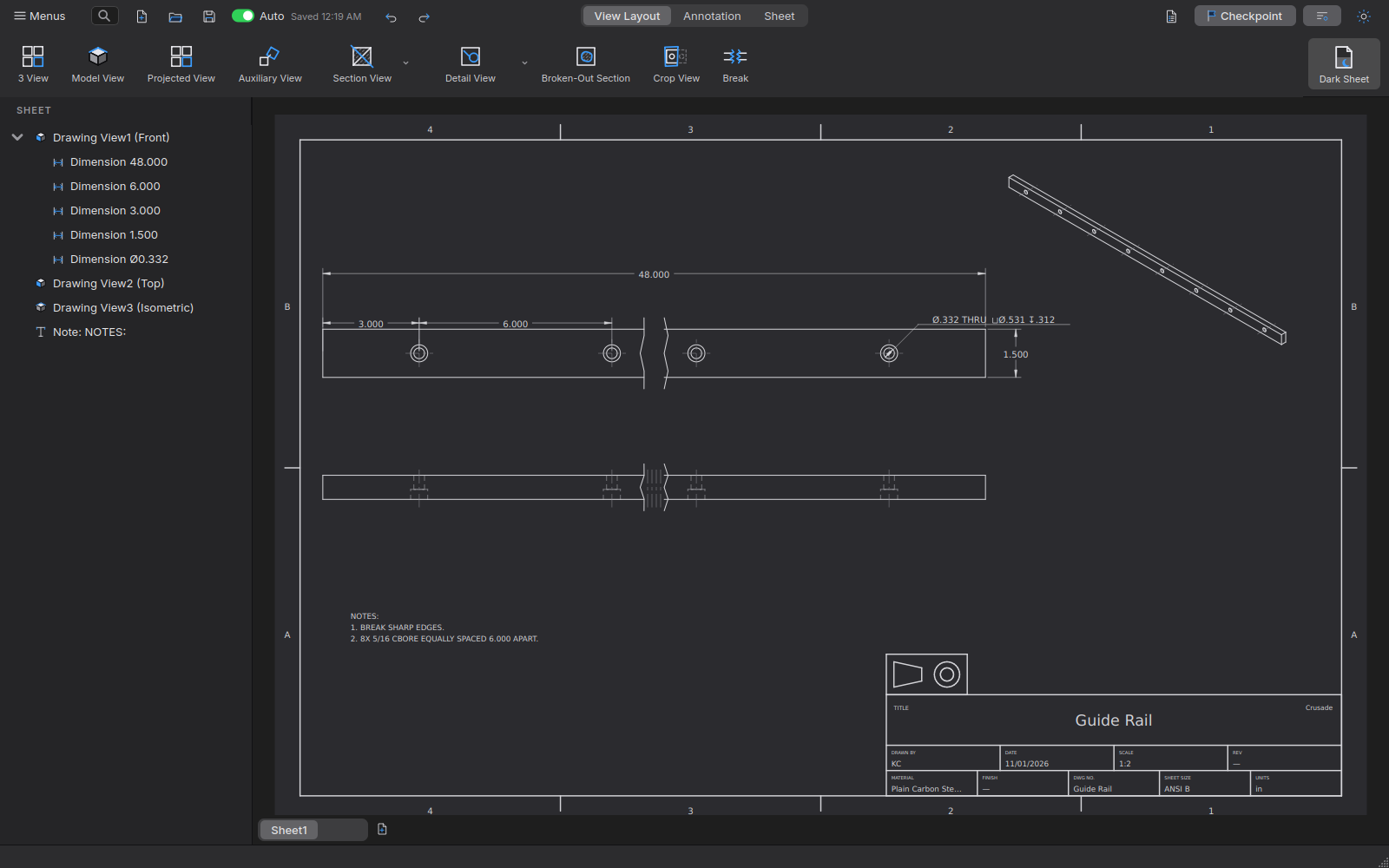
Dark Sheet (the button at the right end of the ribbon's buttons, there on every tab): shows the page dark gray with light lines, easier on the eyes; press it again for white paper. It's remembered, and every drawing window follows it. It is only for the screen: printing, Export PDF / DXF and the Home thumbnail always use the real white paper.
View Properties (double-click a view, or Sheet ▸ View Properties with it selected): the view's own Scale (or the sheet's), Hidden lines, Center marks, Thread callouts, and a Label under the view: its name (FRONT, RIGHT …) and its scale when it isn't the sheet's, or your own text. Sections and details always have theirs.
Standard 3 View or Model View of a part or assembly (a sheet metal part also offers its Flat Pattern: the unfolded outline with a dash-dot center line on every bend and its note, e.g. "UP 90° R2" — UP when the flange folds toward you as you look at the flat pattern; dimension it like any view). Section View: click two points across a view (it snaps level/plumb and cuts right across); Flip Section Direction in Edit. Holes and round faces get center marks where you look at them end-on and centerlines where you see them from the side (a little past each end).
Projected View: click a view (or select it first), then click to its right, left, above or below: the part seen from that side, lined up with it (third angle). Auxiliary View: click a straight edge in a flat view (an angled face seen edge-on, like a bent flange), then where the view goes: the part seen square to that edge, lined up with it (so it sits at an angle on the sheet), the angled face at its true size. Detail View: click a center and a radius. Break (a long shaft, tube or frame member): click where the stretch to leave out starts on the view, then where it ends; the view closes up with break lines, and dimensions across it keep the true length. Break again to leave out more; Edit ▸ Remove Breaks shows it whole.
Smart Dimension (D): pick one or two items and the dimension follows the cursor; click where it goes. Two vertices: horizontal, vertical or aligned, by where you move it. One edge, then a click off it: its length. Two parallel edges (at any angle): the distance between them. Two edges at an angle: the angle (the corner you click in picks which). A vertex and an edge: the distance square to the edge. A circle: Ø; an arc: R; a circle with a point or edge is measured to its center. A Hole Wizard hole gets its hole callout (e.g. "1/4-20 TAP THRU"). The value is written in the middle of the dimension line, upright (read from the bottom of the sheet, also on vertical dimensions) with the line broken round it, like the sketch's dimensions; one too long for the space between the arrows goes above the line instead. The value goes where you click: off-center, or out past an extension line (the dimension line runs on to it); near the middle it snaps to centered. Drag any dimension to move its line and its value; every drawing tool shows its icon beside the cursor, and the mouse wheel zooms the sheet the same way and as fast as the 3D view (Options ▸ reverse wheel zoom, wheel zoom speed). Shop-drawing dimensions (the Smart Dimension drop-down, or Insert ▸ Dimensions), the way laser, plate and CNC drawings are dimensioned: click the points (vertices, edge ends, hole centers snap) and press Enter (or double-click); the direction comes from where the second point lies from the first. Ordinate: the first point is the datum (0), the others get their distance from it, all lined up below the view (X) or left of it (Y); values that would overlap step aside with a jog in their leader, and dragging any value moves the whole set's line. Baseline: every point measured from the first, stacked with the shortest nearest the part. Chain: dimensions one after another between the points in one row (short ones alternate above and below the line). Auto Dimension (select a view first): the view's outline, steps and hole positions from its lower-left corner as ordinate, baseline or chain dimensions, plus one Ø for each hole size; move or delete what you don't want. Cosmetic threads (Thread ▸ Cosmetic, and library fasteners) show in drawings the usual simplified way: from the side, thin lines along the thread at the root (a shaft's minor diameter, a hole's major); end on, a three-quarter circle; and the size as one callout per size in each view, on the right-most thread, with the count: "4× 1/4-20 UNC" ("M10x1.5" for a single one, LH for left hand). Untick Thread callouts in View Properties to leave them out of a view (the thread lines stay). Dimensions on inch drawings keep their trailing zeros to the document's decimals, as ASME drawings do (6.000, 2.500); metric drawings leave them off (6, 2.5). Threads seen at an angle (isometric views) are left out. Geometric Tolerance (GD&T): click the edge it controls (or a size dimension, such as a hole's Ø), then where the frame goes. Its leader leaves the end of the frame with a short shoulder and its arrow lands on the edge, square to it; on a dimension the frame sits under it with no leader (how a feature of size is toleranced). In the dialog pick the characteristic from the symbol buttons, Ø, the tolerance, Ⓜ / Ⓛ, Ⓟ (projected zone), Ⓕ (free state) or Ⓣ (tangent plane), and up to three datums, each with its own Ⓜ / Ⓛ (form tolerances take none); the preview shows the frame exactly as it will print. Datum Feature: click the edge, then where the box goes (letters A, B, C … in turn); the filled triangle sits on the edge (or its extension line) with the leader square to it, or click a size dimension to put the datum in line with it (the axis or center plane is the datum). Symbols move with their view. Surface Finish: click on the edge; Ra and whether machining is required. Weld Symbol (AWS A2.4): click the joint, then where the reference line starts; pick the weld (fillet, V, bevel, square groove, plug, spot), the side (arrow side below the line, other side above, or both), its size (left of the symbol) and length or length-pitch ("50-150", to the right), All around (the circle), Field weld (the flag) and a tail note (the process, e.g. GMAW). Double-click any of them to edit. Note: click to place text, double-click to edit. Hole Table (select a view first): every hole seen end-on with a tag (A1, A2 …), its X and Y from the view's lower-left corner and its size (the Hole Wizard callout when it has one), the tags beside the holes. Cut List (select a view of a weldment part): its cut list as a table (ITEM, QTY, DESCRIPTION, LENGTH, ANGLE1, ANGLE2). For assemblies: Bill of Materials table and Auto Balloon. Double-click a Bill of Materials (on the sheet or in the list on the left) for BOM Options: Subassemblies (Top level only: a subassembly is one row; Parts only: just the parts, those inside subassemblies counted too; Indented: each subassembly's parts listed under it as 2.1, 2.2, their quantities per subassembly), the Columns (tick the ones to show, drag them or right-click ▸ Move Up / Move Down to order them, type a custom property of the parts, such as Vendor, in the last row for its column, and right-click ▸ Delete or Del to take a property's column out), and Sort by a column, A to Z or Descending (items are numbered in the order they show; balloons keep pointing at their part). The table below shows how it will read. Files' Bill of Materials window and its CSV show a drawing's table the same way. Drag anything to move it. Export PDF and DXF. In the DXF, dimensions are real dimensions (other CAD programs see them as dimensions, measuring at the view's scale), with their text as it reads on the sheet; notes, balloons and the rest are lines and text. The Crusade Viewer shows a DXF's dimensions too.
Several sheets: the + by the sheet tabs (under the sheet) adds a sheet. Each sheet has its own size, scale and title block, and the title block says which sheet it is (2 OF 3). Right-click a tab to rename or delete it; Edit ▸ Move to Sheet moves views (with their dimensions) and notes. Export PDF and Print give every sheet.
Views stay lined up: the top and side views of Standard 3 View, projected views and section views stay lined up with the view they came from: drag one and it slides along its line; drag the parent and they come along. Edit ▸ Break Alignment lets a view move freely, Align with Parent lines it up again. Projection (Sheet Properties): Third angle (ASME, US; the default) or First angle (ISO): Standard 3 View then puts the top view below the front and the right view on its left. New drawings show the projection symbol on the title block (Show projection symbol turns it off).
More section views (the Section View drop-down): Half Section (click outside the part, then its center: half cut, half whole), Offset Section (a stepped line through features at different places; the steps aren't drawn), Aligned Section (one end, the center, the other end at an angle: the angled arm is turned into line, at true size) and Broken-Out Section (click round an area of a view and say how deep: it's cut away to show what's inside). Crop View: click around the part of a view to keep and press Enter; the rest is hidden (Edit ▸ Remove Breaks shows it all again). Detail View (Outline): click any shape around the area to enlarge instead of a circle. Display (View Properties): Lines, Shaded with edges or Shaded; shaded views print and export to PDF as they look, and Tangent edges (where a round meets a flat face) can be turned off.
Centerlines and center marks: new section views show centerlines through the holes they cut, detail views their part of them, and isometric views each hole's and shaft's axis. Annotation ▸ Centerline: click two straight edges (the centerline goes midway) or inside a hole or shaft seen from the side. Center Mark: click a circle or arc; Bolt Circle: click one hole of a ring (a dash-dot circle through all their centers); Linear Center Mark: click the holes of a row, then Enter. Select any centerline or center mark and press Delete to remove just that one; View Properties brings deleted ones back.
Dimensions follow the part: change a part and its drawing's dimensions, centerlines, center marks, balloons, note leaders, tolerance frames and datums measure and point at it as it is now. One whose edge or hole is gone turns amber and says it needs a look; Edit ▸ Reattach Dimensions ties on again those still on the part. Model Items (Annotation tab) brings in the part's own dimensions (its sketch dimensions and extrude depths), each in a view that shows it at true size. The Smart Dimension drop-down also has Chamfer Dimension (click the chamfer, then the edge it cuts back: 2 X 45°) and Arc Length (click an arc).
Dimension text and tolerances: double-click any dimension. Tolerance: Symmetric (±0.05), Deviation (+0.10 over −0.05), Limits (the largest size over the smallest) or Fit (H7, g6, H7/g6, with its ISO 286 values if you like). Show the value Basic (in a box) or Reference (in parentheses); its own decimal places; words before and after it (2×, TYP) and lines below it (BOTH SIDES). Dual dimensions (Sheet Properties) shows every length in millimeters or inches too, in brackets; double-click a dimension to turn it on or off for just that one.
Hole Callout (Annotation tab): click any hole, then where the callout goes: its size, THRU or its depth, a counterbore or countersink, threads, and 4× when the view shows the same hole four times; it follows the part. Note with a leader: click the part first (an arrowhead on an edge, a dot on a face; Ctrl+click for bends), then where the text goes. In the Note window, Field inserts {Material}, {PartNo}, {Rev}, a model variable and more, always shown as they are now. Balloon: click a part (even inside a subassembly), then where the balloon goes; double-click one to pick its shape, size, a quantity beside it (2X) and a dot or arrowhead. Datum Target: click a point, line or area on the part, then where its circle goes (A1, A2 …). In the Geometric Tolerance window, a second row can be Composite or Stacked.
Hatching: section views in new drawings hatch each part for its material (steel, aluminum, brass, plastic …), touching parts at different angles. Double-click a part's hatching to choose its pattern, angle and spacing, in that view or every view. Bolts, screws, nuts, washers, pins, keys, shafts and rivets cut along their length aren't hatched; double-click one's cut to set Hatch in sections to Always or Never for that part.
Drafting standard (Sheet Properties): ANSI (ASME, the US; new drawings) or ISO (Europe). ANSI: values read from the bottom of the sheet, in the dimension line; inch values without a zero before the point (.500, ±.005); arrowheads 3 long to 1 wide; section hatching by material; third angle; zones numbered from the right. ISO: values along their dimension lines, above them (a vertical one read from the right); wider arrowheads; one general hatching, each part at its own angle; 0.5 and 0.25 mm lines; first angle; zones numbered from the left. Picking one sets the projection and Lines and Text to its own (both can still be changed). A drawing from before the setting shows None and draws as it always did until one is picked. Templates keep it.
Lines and text (Sheet tab ▸ Lines and Text): the drawing's font, its text heights (dimensions, new notes and symbols, view labels, section and detail letters, in the drawing's units) and its line weights (visible and hidden edges, dimensions and centerlines, cutting lines, the border and title block, hatching, tables, symbols, detail circles, sketched lines, in mm). Usual Settings puts Crusade's own back. Templates keep them.
Layers (Sheet tab ▸ Layers): type a name in the last row to add a layer (right-click ▸ Delete or Del deletes one), and give each a color, a line weight and a line type ("As drawn" keeps each line's own), and tick Show off to hide one: its items don't show, print or export. Select annotations on the sheet first, then pick a layer and Put Selected on Layer. New annotations go on picks the layer new dimensions, notes, symbols, balloons, tables and sketched lines go on. Renaming a layer keeps its items; deleting one leaves them on no layer. In an exported DXF, each layer is a DXF layer with its color and line type.
Sketched lines (Annotation tab, the Line drop-down): Line (click its points; double-click or Enter ends it; Shift keeps it level or upright), Rectangle (two corners) and Circle (its center, then a point on it). Drawn inside a view, they're tied to it and move with it; elsewhere they stay on the sheet. Drag one to move it; Delete removes it.
Views as they're ready: a view of a big part or assembly shows its outline at once and its lines once they're worked out; keep working meanwhile. Saving, printing and exporting wait for the lines.
Assembly views: right-click a part in the view ▸ Show/Hide to hide it, or the subassembly it's in, in that view only (its lines, hatching and balloons; the BOM still lists it). The same menu shows it again, or Show All Components. Right-click the view ▸ Exploded shows the assembly exploded or put together, whichever way it was saved, with thin phantom explode lines from where each moved part sits to where it's exploded (View Properties ▸ Explode lines turns them off); balloon tips follow their parts. Right-click ▸ Alternate Position and tick another of the assembly's configurations: the parts that sit somewhere else in it are drawn over the view in phantom lines.
Rotate View… (right-click a view): give an angle (counterclockwise) and the view turns on the sheet with its dimensions and notes, their text still readable. A turned view is no longer lined up with the others.
Section and break options: in a section's View Properties, Cut faces only shows just the cut faces, hatched, with nothing behind them, and Section depth shows the part only so far behind the cutting line. Double-click a broken view: Break lines can be a zigzag, a small zigzag, straight or a curve, and Break gap sets how far apart the two sides are.
Title block on the sheet: double-click a cell to type what it says, or to rename its label; leave the value empty and it shows what it's linked to again (the model's material, today's date). File ▸ Save as Sheet Format… keeps the sheet's size and title block for other drawings; File ▸ Load Sheet Format… puts one on this drawing.
Arrange Dimensions (Annotation tab, or right-click a view): lines up a view's dimensions in evenly spaced rows outside it, the shortest nearest the view, keeping off the title block, tables, notes, other views and the border. With nothing selected it arranges every view on the sheet; Ctrl+Z puts them back. Flip Arrow (right-click a dimension, note, balloon or GD&T frame): a dimension's arrows go outside its extension lines or back in; a leader's arrowhead goes to the other side of its edge. Clicking a selected dimension's arrowhead flips it too. A GD&T frame placed or dragged close to the straight edge it points at snaps against it (or onto an extension line past its end) with no leader; drag it away and the leader comes back.
Copy and paste: Ctrl+C, Ctrl+X and Ctrl+V (Edit ▸ Copy, Cut, Paste) copy views (with their dimensions), notes, symbols, tables and sketched lines, in the same drawing or into another, on any sheet. They paste where the mouse is.
Revision clouds and symbols: Revision Cloud (Annotation tab, or Insert ▸ Revision Cloud) circles a change: click two corners for a rectangle or an ellipse, or click a polygon's corners and double-click to close it. Drawn in a view, it moves with the view; double-click it to change its arc size. Revision Symbol (Annotation tab) marks a change with a triangle holding the coming revision's letter; click on a cloud's line and it goes wherever the cloud goes. Once a drawing has revision symbols, its revision table shows the zone of each revision's changes. Double-click a symbol to change which revision it marks.
More tables (Insert ▸ Tables):
- General Table (also on the Annotation tab): pick its columns and rows, then double-click it to type in its cells. Right-click a cell there to add or delete rows and columns or merge cells; each column has its own width and alignment.
- Hole Table tags stay with their holes when holes are added or taken away; a new hole gets the next number. Double-click the table for One row for each hole size or Number the tags again, left to right.
- Bend Table (or right-click a flat pattern view): the flat pattern's bends, each tagged A, B, C … with its direction, angle and inner radius, in the order the bends were made; the bends' notes show the letters. Punch Table: its holes by size, tagged P1, P2 …, with how many of each.
- Configuration Table (or right-click a view of a part with two or more configurations): one row per configuration with its part number. Each dimension whose size changes between them shows a letter (A, B …) and its size for each configuration is in the table, so one drawing covers the family. Double-click the table to pick the configurations it lists. Right-click a lettered dimension ▸ Leave Out of Configuration Table shows its number again (Put Back in Configuration Table undoes it).
Inspection (Insert ▸ Inspection): Inspection Balloons… (also on the Annotation tab) numbers every dimension, GD&T frame, surface finish and weld symbol (and notes, if you like) in reading order, each in a small circle beside it. Run it again: numbers stay put and new items get the next ones. Right-click a dimension or symbol ▸ Inspection Balloon adds or takes away one; Renumber Inspection Balloons numbers them again with no gaps. Inspection Table puts the list on the sheet with each one's nominal size and limits; Show Inspection Balloons hides them all (hidden, they aren't printed or exported). File ▸ Export Inspection Report… saves the list as a CSV for any spreadsheet: number, sheet, zone, what it is, nominal, limits, a suggested gauge, and empty Measured and OK? columns.
Compare Revisions (File ▸ Compare Revisions…, or Compare… in File ▸ Version History…): pick the Older and Newer side (any released revision, saved version, or Now). The two are laid over each other: the same in gray, added in solid blue, removed in red dashes. A list beside it names each change ("90 → 75"); click one to zoom to it. Each old version is drawn from its parts as they were then; a view drawn from a part as it is now is boxed in amber dashes. A drawing in a vault offers its vault versions too. Export… saves it all as a PDF.
A whole set at once (Files): right-click a folder ▸ Export Drawings… writes every drawing in it and its subfolders as a PDF (and a DXF if you like) into one folder, keeping the subfolders. Right-click a drawing ▸ Export Release Package… makes one zip with its PDF and DXF, its parts as STEP files and its bill of materials as CSV.
Files and export
New (File ▸ New, Ctrl+N): a new part. If this window's part has anything in it, the new part opens in a window of its own and this one stays open; a blank part is reused. In assembly and drawing windows Ctrl+N is New Part.
Parts .cprt, assemblies .casm, drawings .cdwg, variable tables .kvar. Open or import STEP and IGES (File ▸ Import STEP / IGES, or open the file; IGES surfaces are sewn into a solid where they close, and faces IGES writes as freeform surfaces become flat and round again, so holes are holes); insert either into an assembly. The file's colors come with it: the part takes the file's color (a plain gray, most CAD programs' default, leaves Crusade's own) and faces colored on their own keep theirs (change either with Appearance as usual). Importing into a part that already has something in it colors only the imported faces. They show in assemblies (on each copy of a part) and renders, and stay through saving and reopening; Open as Assembly gives each part file its colors the same way. Every save also stores the finished model in the file, so it can be shared as one file (see Free viewer, license and sharing below; a file grows by its shapes, compressed). Export STEP, IGES (trimmed surfaces, for CAM and older CAD), STL and 3MF (for 3D printing; with the part's color, and faces with their own appearance in theirs, so a multi-color printer's slicer shows them). File ▸ Open Recent.
Auto Save (the Auto switch next to Save, or File ▸ Auto Save; on by default): once a document has been saved, every change is written to its file a moment later, and the label beside the switch says when ("Saved 14:05"). Nothing is saved while a sketch or a feature's panel is open; that edit is saved when you accept or cancel it. The switch is green while it is saving (in every theme). A new document needs one Save first: until then the switch is red, so you can see at a glance that nothing is being saved. Turn the switch off to experiment without touching the file. Separately, unsaved work in an untitled part is kept as a crash-recovery copy and offered back at the next start.
Pack and Go (File ▸ Pack and Go…, in parts, assemblies and drawings; like SolidWorks'): copies the document and every file it uses (subassemblies, parts, fastener library parts, STEP files, linked variable tables) and, if ticked, the drawings beside them that show any of them, into one folder or a zip file. Untick files to leave them out, add a prefix and / or a suffix to every name, or type a new name for one file. The copies point at each other, so the folder opens anywhere on its own; same-named files from different folders are numbered. Files that can't be found are listed (and left out). Save first: it copies the files as they are on disk.
Where Used (File ▸ Where Used…, parts and assemblies): before changing a part, see which assemblies and drawings use it, also through a subassembly. It looks in the part's folder, the folder above and the folders of your recent documents; double-click one (or Open) to open it.
Linux and Windows: documents open on both. Assemblies and drawings store their parts' paths relative to themselves with forward slashes; if a part isn't where the path says (the folders differ between the computers), it is looked for by name next to the assembly or drawing. Sketch text in a font the computer doesn't have (DejaVu Sans is a Linux font) uses a similar one (Arial, Segoe UI).
Free viewer, license and sharing
Crusade is free to download. Without a license it is a free viewer: it opens parts, assemblies, drawings, STEP, IGES, STL, 3MF and DXF to turn, section, explode, play motion studies, measure, see mass and the BOM, switch configurations, hide and isolate, render (and Save Render Image), print (drawings: File ▸ Print…, Ctrl+P) and export PDF, STEP, IGES, STL, 3MF and DXF (as the sender's File ▸ Properties ▸ Sharing allows). The commands a license adds aren't shown: the ribbon, the menus and right-click menus show only what the free viewer does (a tab with nothing left goes too), Home shows Files without the new-document tiles, and the keys of hidden commands do nothing. The title says "Crusade · Free viewer" and nothing pops up at start; the License menu, the Unlock Editing button and Home's line about the free viewer lead to a license. Enter one and everything appears at once, with nothing to restart. SimpleSim, Bolt Calculator, Analysis, Design Check, Cost Estimate and Print Orientation need a license. STL, 3MF and DXF files open in a viewing window of their own.
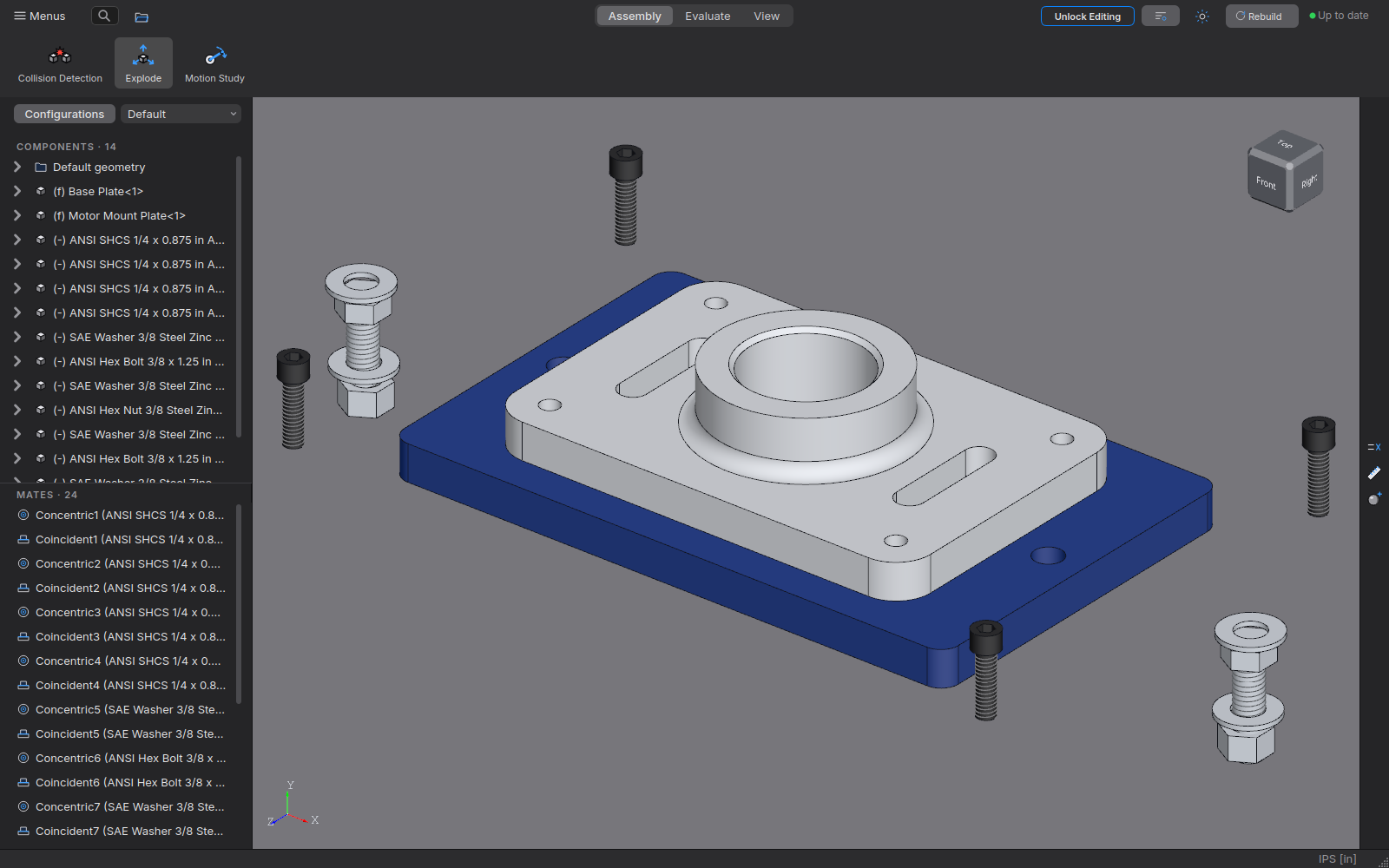
License (the License menu, next to Help). Its top says what this copy is (Licensed · Normal mode and when it last checked, Offline only, or Free viewer); its items follow. Enter License Key…: paste the key from your purchase email (or Paste), pick Normal or Offline only, and choose Activate: Crusade goes online once and editing unlocks in every open window, with nothing to reinstall. License & Computers… shows the license (key ending, how it checks, last checked) with Check now, Switch and Release for this computer, each explained before it's done. A license covers 3 computers at once; Release This Computer… gives this one's place back (to move to a new computer, or before reinstalling), and Crusade there becomes the free viewer at once (save or close changed documents first: it lists them). Your Order Page opens Lemon Squeezy's My Orders: the key, which computers use it, and freeing one.
- Normal mode (the usual): once 2 weeks have passed since the last check, Crusade checks the license when it starts or looks for updates, and after an update. Without internet it keeps working; it needs a check at least every 30 days: from day 23 it reminds you (on Home and the license page), and after 30 days it starts as the free viewer until Check Now gets through. It never locks in the middle of work, and your files open either way. A computer that broke or was lost can have its place freed at your order page; if it ever comes back online, its next check ends its license.
- Offline only (Switch to Offline Only…, or pick Offline only when activating): Crusade never checks the license and it never runs out. Switching goes online once. Release it from itself before you reinstall or give it away; if it's lost or broken, free its place at your order page (it's then no longer licensed). Switch to Normal Mode… goes back.
- Free trial: License ▸ Start Free Trial unlocks everything for 30 days on this computer, once: no credit card, no email, no account. It goes online once and sends only a one-way code for this computer (made from its system ID, on Windows with its motherboard's ID; not your name, email or the computer's name); crusadecad.com keeps only a scrambled form of it, so each computer gets one trial. Free Trial Code… shows that code. When it ends, Crusade is the free viewer again and your files still open.
- A computer with no internet at all: License ▸ No Internet on This Computer?… shows its code (ABCD-EFGH-JKLM). On any phone or computer, open crusadecad.com/activate, enter your license key and that code, download the license file, bring it over (a USB stick) and choose Load License File…. It's an Offline only license.
- What's sent: the license key, the computer code (a one-way scramble of the system's ID, which says nothing about the computer), and the mode: to crusadecad.com, which keeps nothing and asks the store (Lemon Squeezy), which records the activation. Nothing else. A license file only works on its own computer, and putting the clock back doesn't stretch the 30 days.
Sharing (File ▸ Share) an assembly, drawing or part the easy way. One file (the default) makes "<name> (shared).casm" (or .cdwg / .cprt): a single file that opens on its own in any Crusade, free or licensed, with no parts to send (the shapes are stored inside it). The person you send it to can look at it, hide and isolate parts, section and explode it, play its motion, measure it, see its BOM and mass, render it, print it, and export it unless you untick Let them export it (the same switch as File ▸ Properties ▸ Sharing). They can't change it. A shared copy carries nothing about you: no version history, no login or computer name, no folder paths. A shared copy whose parts aren't there opens view-only with a blue banner; put the parts beside it and it opens editable. Pack and Go (zip) makes "<name>.zip" with everything needed to edit it: the document and every part, subassembly (and, if ticked, drawing) it uses, all in one folder, with an optional prefix / suffix; Choose Files… opens the full Pack and Go. Share only writes the file where you choose: nothing is uploaded or sent. Afterwards Open Folder shows it, ready to attach.
Why one file is enough: an assembly stores each part's shape and where each component sits at every save, and a drawing stores its views' lines and tables, next to their recipe (not in the version history). A part keeps only its recipe (Crusade rebuilds it when it opens, so part files stay small); its Share copy stores each configuration's shape, the feature tree as shown, face colors, threads and the flat pattern.
Macros (Tools ▸ Macro Console, Tools ▸ Run Macro…)
Python with the open part or assembly at hand: doc (the document), window, api (helpers: rectangle, circle, polygon, export to STEP / STL / 3MF, mass, variables, files in a folder), kernel (the geometry). In the Macro Console, Enter runs what's typed (Shift+Enter adds a line; a block like for …: waits for an empty line), ↑ / ↓ go through what was run, and a value typed on its own is shown. Run Macro… runs a .py file; macros live in Documents/Crusade Macros (made the first time, with an example that builds a plate with a grid of holes). A run that changes the document rebuilds the view and is one Undo step; an error is printed and changes nothing. All lengths are in millimeters.
Where Crusade keeps things
Your settings and Auto Save's recovery copies are in %APPDATA%\Crusade\ on Windows and ~/.config/Crusade/ on Linux. Fasteners are in Documents/Crusade/Fasteners, drawing templates in Documents/Crusade Templates and macros in Documents/Crusade Macros. Your parts, assemblies and drawings are wherever you save them: to back them up, copy those files (each one carries its own version history).
Versions, revisions and properties
Every part, assembly and drawing keeps its own history inside its file, so it travels with the file (email it, copy it, check it into a vault) and needs nothing else.
- Versions: each save is a version: Ctrl+S, every Auto Save, and File ▸ Save Version…, which asks for a name ("before the holes"). File ▸ Version History… lists them, newest first. Pick one and Open as Copy (a new untitled window; the file isn't touched) or Restore (it becomes the current state; what you had is saved as a version first, and Undo brings it back). Older automatic versions thin out (all from the last 2 hours, then one per 10 minutes for a day, one per hour for a month, one per day after that); saves by hand, named versions and revisions are kept for good.
- Revisions: File ▸ Release Revision… saves and records the next revision (A, B, C … skipping I O Q S X Z, or 1, 2, 3 …, or 01, 02 …) with a description and who released it. Restoring an older version never removes a revision. The current revision is the
Revisionlink in properties. - Properties (File ▸ Properties…): the Document tab (it opens on it), Parts (parts), Configurations (parts; a configuration's own value wins), the Revisions list and Summary (author, keywords, comments, title, subject, plus when it was created and last saved). Each list is a Name and a Value: Document Number, Document Description, Mass, Material (Materials in an assembly), Revision and Version (the file's checkpoints so far); one left as it is isn't saved. Type a name in the New Property row under the last one to add one (another New Property row appears under it). Values the document works out can't be typed over: a property named Mass, Volume, Surface Area, Density, Material (Materials), Revision or Version is that link (typing the name gives it), and the Document Number changes only through its ▾. Right-click a row for Type (Text, Number, Date, Yes or No; Text to start), Link to (
Mass,Volume,Surface Area,Material,File Name,Configuration Name,Revision,Version,Author, the dates …) and Delete (or press Del). A linked value shows f(x) before it and what it comes to after it ("f(x) Mass = 0.462 lb"); an empty Document Number is the file's name ("f(x) File name = P-0123"). Inside other text write$PRP:"Mass";$PRP:"PartNo"uses another property and=width * 2a variable. A document without a number has an empty Document Number with a ▾: it gives the document one (see Document and part numbers below). Files from before 0.0.5 keep working: theirSW-Massstyle links and the properties named Number and Weight read as the new names (title blocks, BOM columns and notes asking for{Number}still find them). Properties are part of the document: undoable, auto-saved and kept in each version. - Part numbers (File ▸ Properties ▸ Parts, parts; the tab after Document): one row per part number: the number (with a blue new when the registry hasn't had it before), its description from the registry, its bodies as color dots (and how many) and its material and mass (see Document and part numbers below). Double-click a number to type over it, or give it another row's number to put them together: bodies with the same part number (even of different materials) count as one part, their masses add up and their materials are listed. Right-click a row for Give Each Body Its Own Number, Use Another Part Number… (one the registry has) or Show in the Registry; click bodies' dots first to work on just those. Bodies without a part number are a row of their own: click Create P-0123-6 for it →. A mass that differs in another document says so in orange (· differs in P-0122; point at it for the other mass). The tab and the registry are one: a number given or a description typed here goes to the registry at once (Cancel puts it back), and a number picked shows the registry's description. The Document tab's Document Description is the registry's too: change it in either place and the other shows it the next time it's opened. A document without a number has no part numbers: the tab is empty until it gets one.
Document and part numbers
The file's name is its document number: a letter, a dash and four digits. P-0001 is a part, A-0001 an assembly, D-0001 a drawing and V-0001 a variable table. All the letters share one counter, so after P-0001 the next assembly is A-0002 and the next table V-0003; a number is never used again under another letter, and after 9999 it goes on to 10000.
Once numbering is set up (a registry in your Projects folder, or signed in to a vault), a new document asks for its number at its first Save: File ▸ New (a part, assembly or drawing, from any window, the toolbar or Home), Make Drawing and an assembly's Insert ▸ New Part in Assembly open the window at once and ask when you first save it; Files' New Part, New Assembly and New Drawing save as they make, so they ask then. Without numbering set up, nothing asks. The Number buttons are the next number (the default), Reserved ▾ (numbers handed out earlier that no file has taken yet, "P-0126 · Lid · reserved", shown only when there are some) and No Number; a number gets a Description ("What is it?"). The number is used up only once you press Save, and becomes the file's and the window's name. Numbering settings… under them opens the Registry's Settings, or, if your vault account can't change the numbering, says which admin can. A number is never forced: No Number asks for a name instead (Part1 to start; "Saved as testingnewidea.cprt · not in the registry"). A document without a number stays out of the registry, and its bodies keep their own names. Cancel makes nothing.
The Save window: a part's or an assembly's first Save, and Save As, open Crusade's own Save window. On the left, Where (signed in to a vault: In the vault, the default, or On this computer only) and the Project folders, each with its file count ("Last used", "The original's project"); New Folder… makes one (in the vault, everyone sees it at once, even while it's empty). On the right, the number, its description and "Saved as P-0013.cprt in Pitching Machine": the file is named by its number (with No Number, by the name you type). In the vault, Check it in now (on to start) puts version 1 in the vault as you save, and Keep it checked out (on to start) keeps it yours to go on working; untick Check it in now to keep it on this computer until you check it in. Save stays gray until there's a project and every pick, and the line above it says what's missing. Save As gives the copy a number of its own, with the original's choices; the original stays as it is. Use the System's File Browser… saves anywhere, outside Crusade's projects.
Numbering it later: in File ▸ Properties, the empty Document Number's ▾ has the next number and the reserved ones; in Files, right-click the file ▸ Give It a Number…. Then Rename the File? asks to rename testingnewidea.cprt to P-0127.cprt: Rename renames it the way Files' Rename does (the assemblies, drawings and links that use it follow, and its drawing of the same name is renamed too); Keep the Name keeps the file's name and writes the number in its Document Number. Either way it's in the registry, and its bodies become P-0127-1, P-0127-2 …. Cancel leaves it as it was. A document not saved yet just takes the number as its name.
Changing a number: a numbered file's Document Number has the same ▾ (in Files: right-click ▸ Change Its Number…). Pick the next number or a reserved one and Rename the File? asks the same way (Rename: the files that use it follow). The registry moves its row, the drawings that share its number and its part numbers (P-0001-1 becomes P-0127-1, in the assemblies that use them too) in one step, and the old number goes back to the unused (reserved) numbers, so it can be picked again. Undo (beside OK in Properties, or Files' Undo) puts it all back: the file's name, its Document Number and the registry.
A drawing shares its model's number: Make Drawing from P-0001 offers Same number as its model first (Enter takes it), with the model's description, so the drawing is P-0001.cdwg and the registry lists it under the part. Its own number (D-0005) is the other choice, and the default for a blank New Drawing.
Part numbers come from the document number. One body: P-0001. Several bodies: P-0001-1, P-0001-2 … in the tree's order. A part with its own color or finish (not the plain material look) adds the color's code: P-0001-BK, P-0001-1-BK. The code is the nearest color in the code table, or the color a finish is named after (Black Oxide: BK). A body with a look of its own takes its own code (P-0001-2-RD), and each configuration its own (P-0001-BK in Black, P-0001-WH in White). An assembly's part number is its document number. In the Bodies panel each body is called by its part number (P-0001-1-BK; a second body with the same number "P-0001-1-BK (2)"), and the name follows when the number changes. A save records the part numbers of every configuration, not just the one showing, so P-0001-WH counts as used while the file is saved in Black. A number a document stops using (P-0001-1 once the body gets its color, P-0001-1-BK) drops out of the registry, so it isn't listed as free. A number made in the Registry (New Part Number…) stays, and its Used In reads "not used now (was in P-0003)".
Every number lives in the number registry, one file in the top Projects folder (.crusade/crusade-number-registry.json), so people sharing a Projects folder on a network drive share it. A number is handed out under a lock: the registry is read again and the folder is checked for a file with that name (under every letter) first, so two people never get the same one. The registry learns only from saves and opens of numbered files inside the Projects folder (it never looks through folders); each save records the document's description, revision, version and part numbers, and works out each part number's mass in the background. When two documents give one part number different masses, the latest save wins and the part number says Differs in the other document.
The Registry: Home's Number registry… turns Home into it, the way Files… does (‹ Home or Esc turn it back); Tools ▸ Number Registry (a drawing's File menu; Files ▸ Number Registry) opens it on its own. Across the top: Documents, Part Numbers and Settings, and Find. Find looks in every property of every document and part number, names and values, not just the columns: typing "vendor" finds everything with a Vendor property. The All properties ▾ box left of it lists every property name in the registry; pick one (or type "vendor: mcm") to look only in that property's values. When a row is found by a property that isn't a column, the match shows under its description in gray ("Vendor: McMaster-Carr", the found words in blue). A document's properties are the ones its last save in the Projects folder had (File ▸ Properties, each configuration's too), so an older file shows up after its next save. Documents lists every number in the counter's order (V-0117, A-0118, P-0119 …) with its description, type, revision, folder ("not saved yet" for a reserved one) and status (Reserved, In use, Released, Obsolete); point at a number for the part numbers in it. A drawing sharing its model's number is a row of its own. Double-click a description to change it. New Number… hands out one number, Reserve Numbers… several at once (for a job, say), More ▾ has Mark Obsolete (again: back In Use) and Export CSV…, and Open File opens it. Part Numbers lists every part number with its description ("no description yet" when it has none), material, mass (orange · differs in P-0122 when another document's mass for it differs) and where it's used ("A-0118 (×4)" in an assembly, "P-0123 (2 bodies)"); Open Where Used opens the document that saved it last. New Part Number… makes one: On its own (the counter's next, P-0128) or For a document (its next -N, P-0127-3), with a description; a document's Parts tab then gives it to bodies.
Bringing your part numbers from another CAD: More ▾ ▸ Import Part Numbers… reads a spreadsheet (.ods, .xlsx or .csv): a table with a header row, or an export with one value per row (the column names first, then each number's values in turn). Its first rows are shown with each column's use above it, guessed: Number, Description, Kind, Property or Left out (a column with the same value in every row, like "Edit", is left out; "Not set" counts as empty). The values have their say too: varied text is the Description and a short list said again and again is the Kind, so a missing column name doesn't shift the rest. Click a column's title to change its use. The line under it counts them ("445 numbers, 0 already in the registry"). In an export with one value per row, a value that looks like a number (a description like M8 or BRG6204) stays a value where the numbers around it have their usual rows, and a number with a row missing or one too many never takes the next number's: its values go to the columns they match, the count line says how many numbers that happened to, and See Which lists them (what was left empty or left out) so you can check them in the file. Import as says where they go: Part numbers (the first choice) or Document numbers. Import takes them in at once: each number exactly as written (P-0123-2, TP-0012-D3 too), its description, and its other columns as properties Find looks in. As part numbers they're on the Part Numbers tab like ones made with New Part Number… ("not used yet"): give one to a body in a part's Properties, and it stays in the registry when no body has it any more. As document numbers, each is a part, or an assembly when its Kind says so (ASSEY, assembly) or its prefix is one, In Use with no file yet ("no file yet" in Folder); save or number a file with one and it takes that entry over. Numbers already on either tab are left as they were and listed. Numbers imported as document numbers that no file has taken can move to Part Numbers later: More ▾ ▸ Move Imported to Part Numbers… (Undo Move puts them back). A copy of the registry from before is kept beside it, and Undo Import (in the window after it, and in More ▾ while the Registry is open) takes them out again. When the numbers share one shape (letters, "-", a counter), it asks whether to number that way from now on: a Kind choice list made from their prefixes (P Production part, TA Tooling assembly …), "-", and the counter, next after the highest. A new assembly starts on the assembly code they use most, and a part on the part code they use most (a type with none of its own starts on the most used of all). Either way, a counter never hands out a number at or below the highest one brought in that it counts: a shared counter goes on after the highest of them all; with one counter per prefix, each prefix goes on after its own highest (TP-0120 after TP-0119), and a prefix none were brought in with starts at 0001.
Settings is how numbers are made, kept in the registry file itself ("Shared by everyone using this folder"), so everyone numbers the same way. NUMBERING shows the next part number as you set it up (P-0127-1-BK, "Example: body 1, black"). Under it, Document numbers and Part numbers are each a row of chips, one per segment of the number: its kind small on top and what it gives below (Document type P, then Counter 0127; Document number P-0127, Body 1, Color BK), with the separator between them as plain text. Click a - to change it: any character a file name can have (P-0001.1, P_0001), or nothing at all (a faint dot shows where to click). Numbers are file names, so / \ : * ? " < > | are refused, with a short red line saying so. No number can touch the counter: with no separator next to it (or next to a document number that starts or ends with it), what follows must start with a letter and what comes before must end in one (P0001W, P0001BK, AB0001; not 1600001). Taking that separator away, or typing a code or text that would put a digit there, is refused ("Put a separator or a letter by the counter."), and a chip moved or deleted that would leave a digit there gets its - back. A document property's own value (one not in its codes) isn't refused, it's yours: when it would put a digit against the counter, the number gets a - there (16-0001), and the New box shows it so. + adds one: Text (PRJ), Choice list (Product type: 160 Brackets, 120 Plates, picked in the New box), Linked to a property (the Document type's letter, a body's color, finish or material code, or a Document property through its codes), Counter and, for part numbers, Body number. Click a chip to set it up in its card: its Kind, a choice list's Name and choices, what it's linked to and its codes, the counter's Digits (4: P-0001) and Next number (one lower than a number already given out changes nothing). Drag a chip to move it; right-click ▸ Set Up… or Delete (or Del); the Counter and the Document number always stay. Counter is Shared by all (P-0127, then A-0128) or One per prefix (160-0001 and 120-0001 both exist; each goes on from its own highest). A drawing takes its model's number can be turned off; Ask for a number for each new document is yours alone (kept in your own settings). CODE TABLES on the right: each choice list's and document property's codes, Color (BK black, WH white, GY gray, SR silver, RD red, BU blue, GN green, YE yellow, OG orange, BN brown, CL clear: click a code or a name to change it, double-click a swatch to change its color, right-click ▸ Delete removes one; No color selected is a part with no color of its own: it gets no code), Finish and Material; each table's last row ("New Choice", "New Value", "New Color" …) adds one. Make as many tables as you need: the + at the right of CODE TABLES makes a new Choice List or one Linked to a Property, adds its chip to the document number and opens its card to name it. Drag a tab to move it, or right-click it ▸ Move Left / Move Right; a choice list's or property's tab also has Delete (its chip goes too). The tabs stay in your order. A part number without a Color chip gets no color code. The ? at the bottom left has the directions. Done goes back to Documents.
Number patterns: with a choice list, the New box asks for it above the number ("Product type Pick one ▾"). Nothing is guessed: the list starts on Pick one, the number shows ??? in its place (P-???-0013) and the box waits for a pick, unless the document's linked property already says it. A drawing takes its model's choices, and Save As the original's, shown with "(the model's)" or "(the original's)". The number then shows what it'll be: 160-0001 for a bracket, 120-0002 for a shaft. Reserve Numbers…, New Part Number… (On its own) and the next number in File ▸ Properties ask for the choice the same way, and no number is ever made with it left out. Either way the next number is checked under the same lock. A document number never changes by itself: when a property it's built from changes in File ▸ Properties, OK asks whether to renumber it ("Renumber it to 120-0043?": Renumber works like Changing a number above, files that use it follow; Keep the Number leaves it). Part numbers follow their segments at once, the way the color code does. A registry from before segments reads as the usual pattern with its own letters and digits.
Files, checkpoints and revisions
- Files (Home ▸ Files…, Ctrl+Shift+O, or Browse All Files › over the recent list): every part, assembly, drawing and STEP model in the folders you add (Add a Folder…), as pictures, with search (names, part numbers, descriptions), kinds and sorting. Pick one to see its facts and where it's used. Crusade only ever looks inside the folders you add. A folder's own folders are listed above its files; double-click one (or press Enter) to open it.
- Rename… and Move… (in Files, or right-click a file; F2 renames): give a file a new name, or move it to another project folder (New Folder… makes one). The window lists the files that use it (assemblies, drawings, parts that insert it); they're changed to point at its new place, each as a new version in its history. Renaming a part or assembly offers Also rename its drawing of the same name (one Undo for both). It's all or nothing: if anything fails, every file is left as it was. Undo (Ctrl+Z) puts it back. A file open with unsaved changes, or open in another Crusade window, has to be saved or closed first. Files outside your project folders aren't looked at, so they aren't updated. Moving files in your computer's own file manager still breaks those links: use Files.
- Bill of Materials… (in Files, for an assembly or a drawing that lists one): its parts list without opening it (the same as the drawing's BOM table), for any configuration; Export CSV… saves it for Excel, LibreOffice or Google Sheets (UTF-8, a header row).
- Checkpoint (top of each window): a named version with a short note, before you try something.
- Rev button (beside it; Rev A, Rev B … once released): Checkpoints and Revisions, every revision, checkpoint and save with its picture and the Crusade that saved it; Open Read-Only shows one in its own window, Restore… brings it back, Save Copy… saves it as a file of its own exactly as it was saved (so the Crusade that saved it can open it), Rev Up releases the next revision.
- Damaged files: after each save Crusade keeps the last good copy of the file in a hidden .crusade folder beside it. If a file can't be read (cut short while it was copied, say), opening it offers to restore that copy (the damaged one is kept as "Name (damaged)") or to open it read-only first.
Setting up a vault on a NAS or shared drive
A vault (Home ▸ Vault… ▸ Create Vault…) is a folder that holds a team's shared files, versions and part numbers, with an account for each person. It can be on your own computer, or on a NAS (a network drive such as a Synology or QNAP) or a Windows share so the whole team works from it. Set the shared folder up once, before you create the vault.
- Where to put it: make one shared folder for Crusade on the NAS (Crusade, say) and create the vault in it. Keep nothing else in the vault's folder, and don't move, rename or delete files there with Explorer or another program. Each person's Working Folder (their copy of the vault's files) is best on their own computer: it opens faster, and files they have checked out can still be changed while the NAS can't be reached. Then the vault button at the bottom right says away, in amber: you stay signed in, and Check In… says the vault can't be reached until it's back (then check in as usual).
- A share, not a sync folder: use a network share every computer opens directly, not a folder a sync app copies between computers (Dropbox, OneDrive, Google Drive, Synology Drive, Qsync and the like). A synced copy arrives late, so two people could check out the same file.
- Reaching it from each computer: each computer picks the vault's folder the way it reaches it: a network path such as
\\nas\Crusade\Shop Vaultor a drive letter on Windows, a mount point such as /mnt/crusade on Linux. They don't have to match, so a team can mix Windows and Linux computers. One way for all your Windows PCs is still simplest to look after, and a network path keeps working if a drive letter changes. Leave each computer's clock set automatically, so the vault's log shows the right times. - Who can open the folder: accounts and roles decide what people can do in Crusade, but anyone who can open the vault's folder with other programs can copy or change its files. So only your team should reach it: make a group for them on the NAS or in Windows (crusade, say), put each person's own login in it (no shared logins, no guest access), and give that group read and write on the shared folder and everyone else no access. Every computer running Crusade writes to the vault itself (checking in, numbers, the log), so each person who uses the vault needs read and write; a vault the team can only read isn't possible yet.
- Synology (DSM): Control Panel ▸ Shared Folder ▸ Create. Under Permissions, the team's group gets Read/Write, everyone else (and guest) No access.
- QNAP (QTS): Control Panel ▸ Privilege ▸ Shared Folders ▸ Create. Under Edit Shared Folder Permission, the team's group gets RW, everyone else Deny; leave guest access off.
- Windows share: right-click the folder ▸ Properties ▸ Sharing ▸ Advanced Sharing… ▸ Share this folder ▸ Permissions: remove Everyone and add the team's group with Change and Read. On the Security tab, give the same group Modify.
- Backups, off the NAS: an admin's Back Up Vault… (in Home ▸ Vault…, or in the menu of the vault button at the bottom right of a window) saves one dated zip of the whole vault, with a RESTORE.txt inside that says how to put it back. People can keep working while it runs. Save it somewhere other than the NAS (a USB drive you unplug afterward, or another computer): a backup on the same NAS is lost with it. NAS snapshots are a good extra, but they're on the same NAS too. The zip holds the vault's accounts (everyone's password hashes and the recovery code's hash), so keep it where only admins can get to it.
- Anchors, more copies of the backups: the vault menu ▸ Anchor…, tick Make this computer an Anchor and Save. While Crusade is open and signed in, that computer keeps the newest backup of each of the last few days, in the background; a day costs only what changed. An encrypted vault service's backups are sealed, so no one can read them there; a vault that isn't encrypted has plain backups, readable by anyone who can open that computer's files. To restore one, Make a Backup File… writes that day's zip for the NAS guide's restore steps. An admin may need to OK it first (Backups… ▸ Anchors ▸ OK Anchor) and can turn one off. A folder vault's anchor must be an admin's computer: it makes its own zip of the vault once a day, readable like Back Up Vault's.
Getting the vault's newer files
Your working folder holds your copies of the vault's files. Crusade keeps them current without copying the whole vault.
- Get Latest… (the vault menu: Home ▸ Vault…, or the vault button at the bottom right of a window) lists just the files you already have that are newer in the vault, with who checked each in and the note. Untick any you don't want and press Get. Files you have checked out aren't listed, one open with changes not saved isn't ticked, and an open one is reloaded once it's got. On a new computer, Get Everything in the Vault… (the same menu) copies every file, after saying how many and how much space.
- Opening a file gets what it uses: when an assembly's or a drawing's parts aren't here yet, or are newer in the vault, opening it first lists them, ticked. Get and Open copies them (read-only until you check them out) and opens it; Just Open opens it with what's here.
- The blue bar: while a file you don't have checked out is open, and someone checks in a newer version of it or of a part it uses, a blue bar says so ("Sam Engineer checked in version 4 of Bracket.cprt. Get it and reload?"). Get and Reload gets it and shows it; Later hides the bar until something newer comes.
- Clear Up Space… (the vault menu) lists the files here that the vault holds exactly as they are, each one checked against the vault, with their sizes. Remove takes the ticked ones off this computer; opening one gets it again. Files checked out, changed here, or open (or used by an open file) always stay: Why not these? says why. Crusade offers it by itself when the working folder passes 20 GB; change that at the bottom of the window.
Old versions in a vault, as they were
Each check-in and release remembers which version of every file it used: an assembly's parts and subassemblies all the way down, a drawing's models. So an old version shows exactly what it was, not today's parts.
- Open an old version: in the Vault window, pick the file and double-click a version in its History (or right-click it ▸ Open This Version; in Files, right-click the file ▸ Versions). It opens read-only with the parts it used then, and so does anything you open from it. Your working folder isn't touched. Files it used that aren't in the vault (a variable table, a STEP model) come as they are today, and the banner says so.
- Get This Version puts that version, and the files it used at their versions then, in your working folder, read-only. Files you have checked out are left as they are. Get Latest brings today's versions back.
- Pack and Go… (right-click a version, or More for the newest) packs that version as it was, with the drawings that were the newest then, into a folder or a zip.
- Check In… helps keep the record true: when a file you're checking in uses one you've changed but left unticked, it says which version will be used; files it uses that aren't in the vault get an Add It… button (Add Them… for several); and the files others use go in first.
- Delete for Good won't delete a file that a kept version of another file uses. It can stay in the trash.
Keeping fewer old versions
Old versions take room, both in the vault and inside each file (its saves, Auto Saves and Checkpoints). Two settings can keep fewer of them. Both are off at first, and both show what they would remove before anything goes.
- In the vault (admins only): the vault's menu ▸ Keep Fewer Versions…. Tick Keep only the last and pick a number. The list shows what would go now, file by file, and the space it frees. Nothing is removed until you press the red Remove Them. After that, every check-in keeps its file to that number.
- Always kept: every released revision, each file's newest version, and every version that a kept version of another file uses (an old assembly's parts at the versions it used). Old assemblies and releases still open as they were.
- Removed versions leave the History list and can't be opened again. The Vault Log says who removed what.
- For your own files: Options ▸ General ▸ Versions ▸ Change…, the same window. From then on each save keeps the file's last versions.
- Remove Them trims the files in your Projects folder now. Only From Now On leaves each file until its next save.
- Always kept: every revision, every vault check-in, the newest version, and the newest version each Crusade saved (so an older Crusade can still open the file).
- Left alone: open files, files you can't change (vault files not checked out to you), and folders named No Claude.
Untick the box to keep every version again. Versions already removed don't come back.
Options (Tools ▸ Options)
Units (inch or metric, decimals per quantity), Mouse (SolidWorks: middle-drag turns the view, Ctrl+middle pans, right-drag opens the gesture ring; Onshape: middle-drag pans, right-drag turns, Ctrl+right-drag pans), Mouse Gestures (see Viewing the model), smooth animations, the context toolbar, wheel-zoom direction and speed, view rotation speed, snapping to model edges while sketching, keyboard shortcuts (Onshape-style defaults, fully customizable), and Appearance: a theme (Dark, the default, or Light) plus every color you might want to change — accent, window, panels, viewport gradient, part, edges, the three sketch states, dimensions — with a swatch, a hex box and a reset per color. Save as Theme… keeps your colors as a theme of your own, with a name (it's in the Theme list from then on; Delete Theme removes it). Copy Theme Code puts a code for the look on the clipboard (send it to anyone); Paste Theme Code… adds a theme from someone's code, the same colors exactly. Dark's viewport is a flat mid gray with black fully defined sketch geometry and dimensions, so sketches read on light and dark parts alike. Icons and highlights follow the accent.
Third-party software
Crusade is built on open-source libraries (OpenCASCADE, Qt for Python, NumPy, SciPy, Pillow and the libraries they bundle), used unmodified under their own licenses. They are listed, with the credits their licenses ask for and their sources, in the third-party notices.
SolidWorks is a trademark of Dassault Systèmes, Onshape and Creo of PTC, and Fusion and Inventor of Autodesk. Crusade isn't affiliated with them.